Cooldowns for the same ticket
A cooldown sets the interval between repeated review requests on the same ticket. A returning customer's new repair has its own request history.
Your chosen review link and message can go out after an in-store payment. Return shipments can trigger requests after delivery. Timing and customer eligibility are checked before a message is sent.
In communication settings, Review requests holds the review link and invitation customers will receive. Enter those details and enable the channels you use.
Set Walk-in send delay (hours) in Review timing & results for automatic walk-in requests. For mail-in repairs, enable review sending for the package so delivery can trigger a request.
Outcomes appear in the payment review card and ticket conversation, with counts in Review requests under Results. Consult the recorded reason before trying again.
A completed payment or delivery starts the check. Your customer's contact details, opt-outs and your timing settings determine whether a request goes out.
A cooldown sets the interval between repeated review requests on the same ticket. A returning customer's new repair has its own request history.
Automatic review texts wait during quiet hours and go out when sending is allowed.
Text requests need a connected provider and a permitted recipient. Email needs an address on file that has not unsubscribed; selected channels are tried separately.
Staff can send a request by hand when appropriate. The same channel, consent and suppression rules still apply to that customer.
Staff choose the destination and wording, then consult request history. Outcomes include Scheduled, Provider accepted (delivery unconfirmed) and Not sent with a reason.
An eligible customer receives your review invitation by an available message channel. The link leads to your public review page. Review texts end with “Reply STOP to unsubscribe”.
Manual and automatic review requests are included on Pro and Business.
Compare plans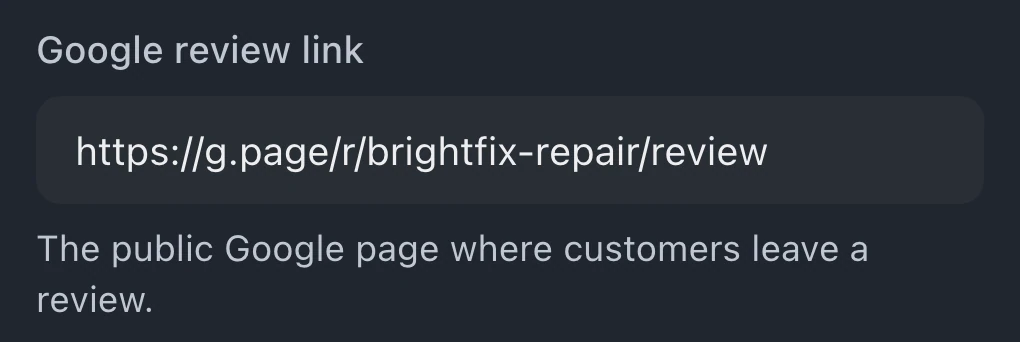
In Review requests, enter your Google review link or Facebook review link. Use Review platform to choose the page your requests lead to.
Automatic requests follow the configured in-store payment or return-delivery event. A status change alone is not a trigger. Sending needs Walk-in reviews or Mail-in reviews enabled, a review link, a usable channel, no opt-out and passing timing checks.
Request outcomes explain what happened. A delay, cooldown, pending request or unavailable contact channel can affect sending. Return-delivery requests also require review sending enabled for that package. Provider acceptance alone does not confirm delivery.
Delivered return shipments can trigger requests when review sending is enabled for the package and the customer is eligible. Mail-in shipping tools require Business.
Leave your email for access updates. Your name and shop name are optional.
 Watch the product tour 3:34 Follow a repair from check-in to pickup in BenchKey