Fields and appearance
Questions, dropdowns and photo uploads shape the inquiry form. Match the widget to your website with a greeting, business name, logo and color.
A repair inquiry form on your website sends requests to BenchKey for staff to answer. Track who needs a reply, follow up on quiet leads and carry the conversation into a ticket when the customer commits.
Watch it work 0:59Copy the widget script from settings and add it to your website. Submitted repair inquiries arrive as leads for staff to review.
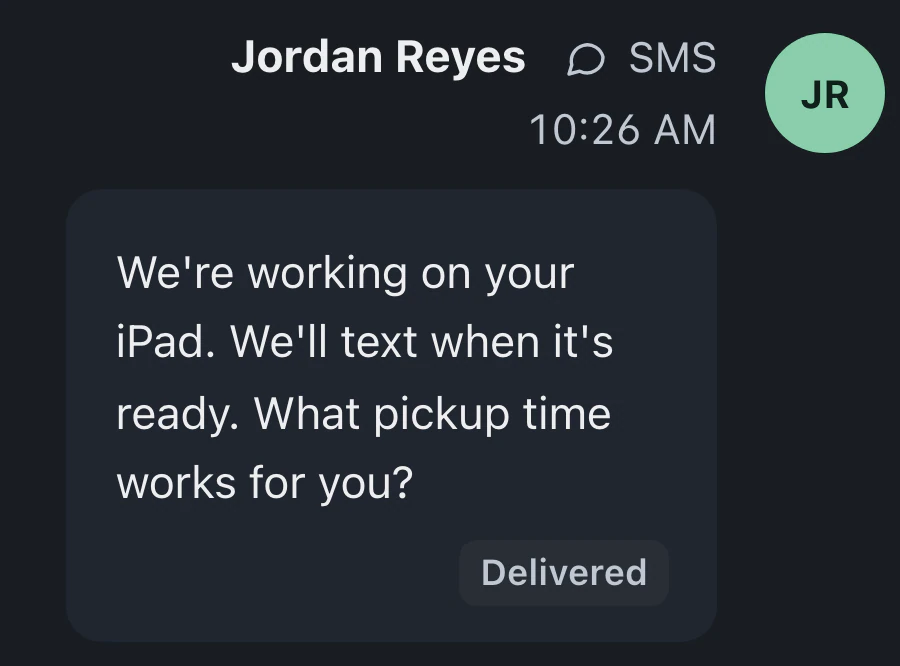
Reply by email from the lead, or send a text through your connected provider. The request and conversation stay together for staff to review.
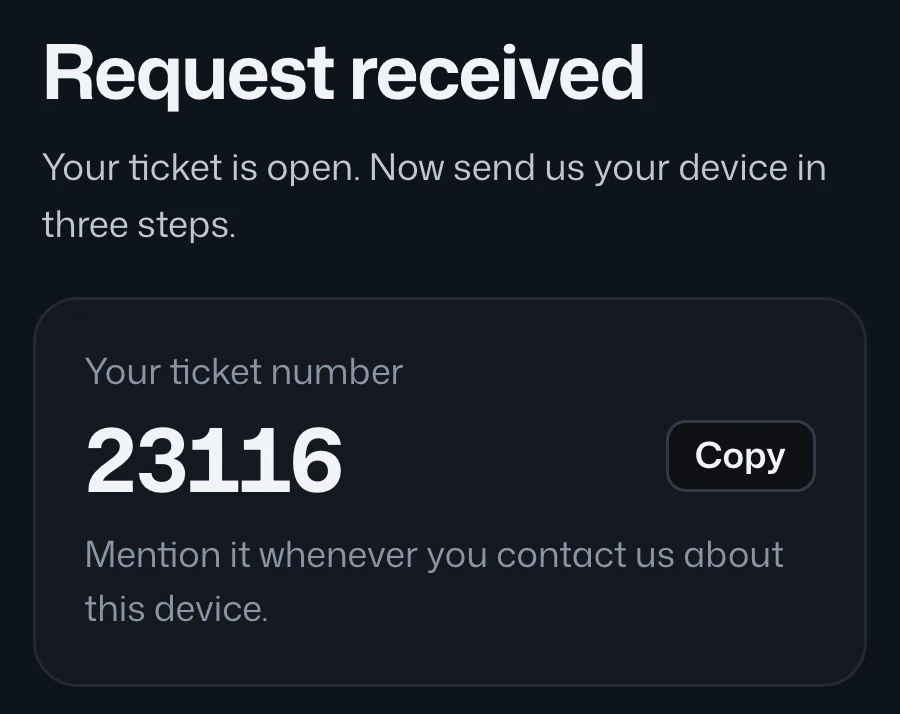
When the customer commits, convert the lead to a ticket. Their contact details and conversation carry over, and the lead's follow-ups stop.
Customers see your shop's name, describe their device problem and leave their details. You receive a "New estimate request" email with their answers and can reply directly.
Form settings, attention views and follow-ups help staff respond to each inquiry as the conversation develops.
Questions, dropdowns and photo uploads shape the inquiry form. Match the widget to your website with a greeting, business name, logo and color.
Rename and arrange your lead stages. Views for assigned leads, follow-ups and requests awaiting a customer response help staff find their next task.
Automatic follow-ups use your timing and text. A customer reply pauses the sequence; your reply setting determines whether it stays stopped or resumes after staff answer.
A matching phone or email flags a returning customer. Their active tickets, open estimates and history are available before you decide how to respond.
The widget uses your business hours to switch its wording after closing, setting an expectation for when the shop will reply.
Staff read requests, save internal notes and answer from the lead. When it becomes a repair, the earlier conversation is available to the bench in the ticket.
Visitors enter their repair question through the website widget. Device details and photos can be requested in the form before staff reply.
The leads widget, pipeline and follow-ups are included in Pro and Business.
Compare plans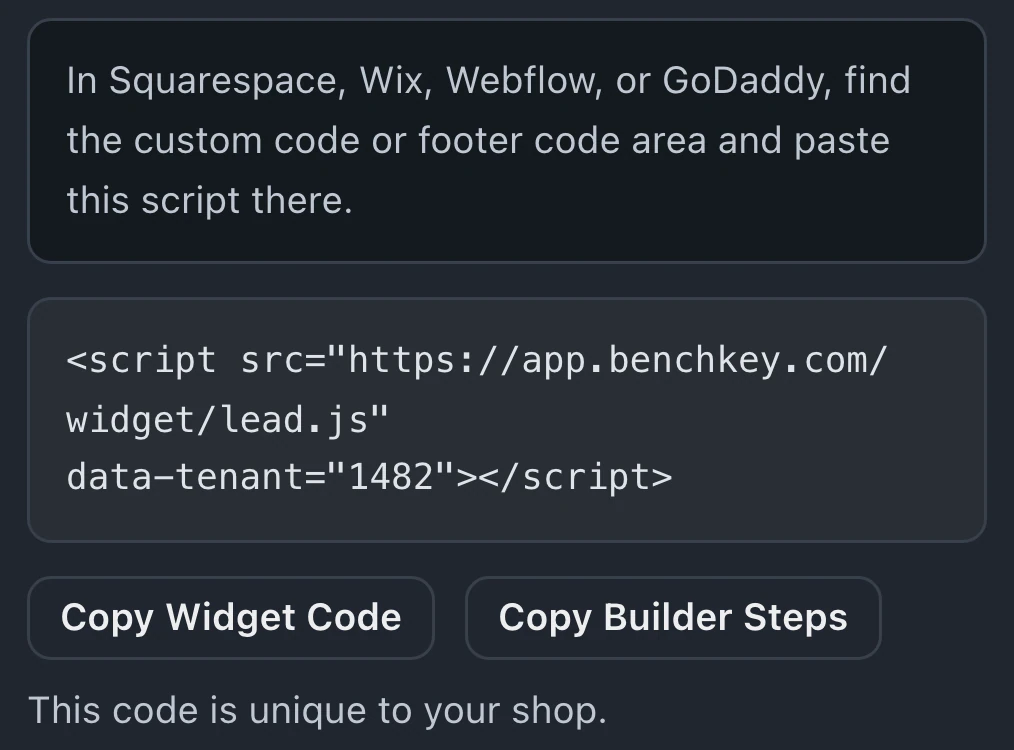
Websites that allow a custom script can run the widget. Copy the embed snippet from BenchKey's widget settings into your site. Existing website buttons can also be configured to open the same form.
A customer reply pauses the automatic sequence. Your reply setting keeps it stopped or resumes it after staff answer; check the next-send preview. A new quote can start it again. Conversion, archiving or closing stops follow-ups.
Progress is saved as a lead after the visitor enters contact information and chooses Continue. The widget explains this beside the button. Information typed without continuing past a step remains in the visitor's browser.
Photo upload fields can be added in the widget form builder alongside questions and dropdowns. Customer attachments remain in the lead, where staff review them with the request and conversation.
Leave your email for access updates. Your name and shop name are optional.
 Watch the product tour 3:34 Follow a repair from check-in to pickup in BenchKey