Browser status
Offline saving starts when the browser reports offline. If it reports a connection but cannot reach BenchKey, the "Reconnecting" screen blocks payments.
With Offline checkout enabled, save Cash, Check and Other on an unpaid invoice already open when the browser reports offline. Payments sync after reconnection with Checkout's "Customer lookup" open on that register.
Included in StandardProBusiness
Offline checkout guideLoad Checkout's "Customer lookup" online for about a minute. When the browser is offline, Pay → "Split payment (manual methods)" shows a notice about saving on this device.
Cash, check and other supported manual methods accept an entered amount. Collect the payment, then record it on the register device.
After reconnection, queued payments appear in the register activity and update their invoice balances. The pending count shows whether any records are still waiting.
Until syncing finishes, pending records remain in the browser data on the register that took the payment. Preserve that data.
Offline saving starts when the browser reports offline. If it reports a connection but cannot reach BenchKey, the "Reconnecting" screen blocks payments.
When online, saved payments retry in Checkout's "Customer lookup" on the original register: on reconnection, window focus and every minute. The reconnection retry first checks that BenchKey's server answers.
A pending record retains its identity across retries, so resending it does not create another invoice payment.
Offline checkout is off by default on Standard, Pro and Business; BenchKey turns it on for your shop on request.
Compare plans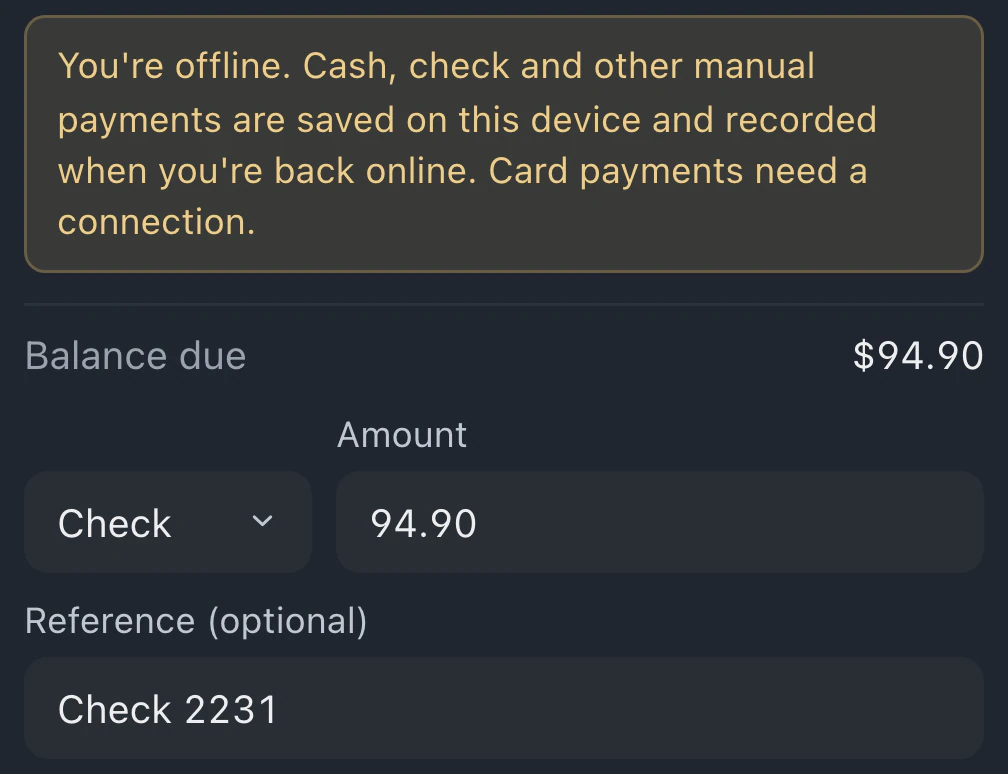
Card payments need a connection, including card readers, saved cards, payment links and manual card records. Financing also requires a connection. An Owner or Admin can save Cash, Check and Other offline; Zelle and Store credit need a connection. Text, Email and Print receipts wait for reconnection.
Retries of the same queued record are recognized, so they do not create a second payment. Let the pending count clear, then review the invoice and register activity to confirm the records arrived.
Checkout needs a connection to reload invoices and settings. Pending payments stay in browser storage and are sent after reconnection with "Customer lookup" open. Continue using the original register and preserve its browser data until syncing finishes.
Offline mode covers manual payment recording in Checkout. Repair tickets, customer records and the rest of the app need a connection.
Leave your email for access updates. Your name and shop name are optional.
 Watch the product tour 3:34 Follow a repair from check-in to pickup in BenchKey