1 #23129
Samir Qureshi Galaxy Tab S8 1d 23h left Tablet Repair See late repairs before the customer calls
View each technician's queue by status on a board, with time left or overdue on each repair. Status routing rules move matching tickets to the right queue when their status changes.
Included in StandardProBusiness
Queues and turnaround guideHow turnaround timers track your repairs
- 1
Set targets by repair category
Set turnaround targets by repair category, status, queue or all tickets. Choose minutes, hours or days, then set a warning percentage.
- 2
See time on each repair
See time remaining or overdue on the ticket, with Due soon and Overdue labels. The board puts the timer beside each repair.
- 3
Notify the queue's team
Enable notifications on the timer and Timer breach in Queue alerts. Choose a backup to receive alerts that remain unread past your chosen delay.
Bring a teammate into the repair notes
Pin counter instructions at the top of Internal notes, visible only to your team. An @mention notifies a teammate. Watchers receive ticket notifications and can mute them.
Keep the ticket with the work
Route repairs by status, move tickets together and check the bin map. Send a ticket to another store when the work belongs there.
Route tickets by status
Set a status and destination queue, then match every ticket or filter by repair category, rush tier or device text. Switch rules off when work changes.
Move tickets in batches
Select tickets in All tickets to change status, queue or technician together. Staff permissions still apply. Results count updated tickets and identify any that failed.
Find the device's bin
Open Bin view from a ticket to find occupied bins and repairs without one. Move selected tickets to another bin or clear their bin assignments.
Transfer to another store
On Business with multiple stores, use "Transfer to store…" to move a ticket. The move is recorded in the audit log, and your customer gets a message that the repair moved.
- Pause while you wait
- Choose Waiting for Parts, Pending Approval or other statuses to pause a turnaround timer. Time in those statuses does not count toward its target.
- Set a ticket deadline
- Use "Add due date" to set a ticket deadline. On the ticket, the due date replaces turnaround timers and shows "Late" once it passes. The queue gets an alert.
- Send a handoff note
- Use a number key on a selected ticket to move it to another queue. Add a handoff note so the next technician knows what's needed.
Queues, timers and store transfers
Queues, the board, turnaround timers, routing, alerts, bulk actions, bins, notes and watchers are on every plan. Store transfers require Business.
Compare plans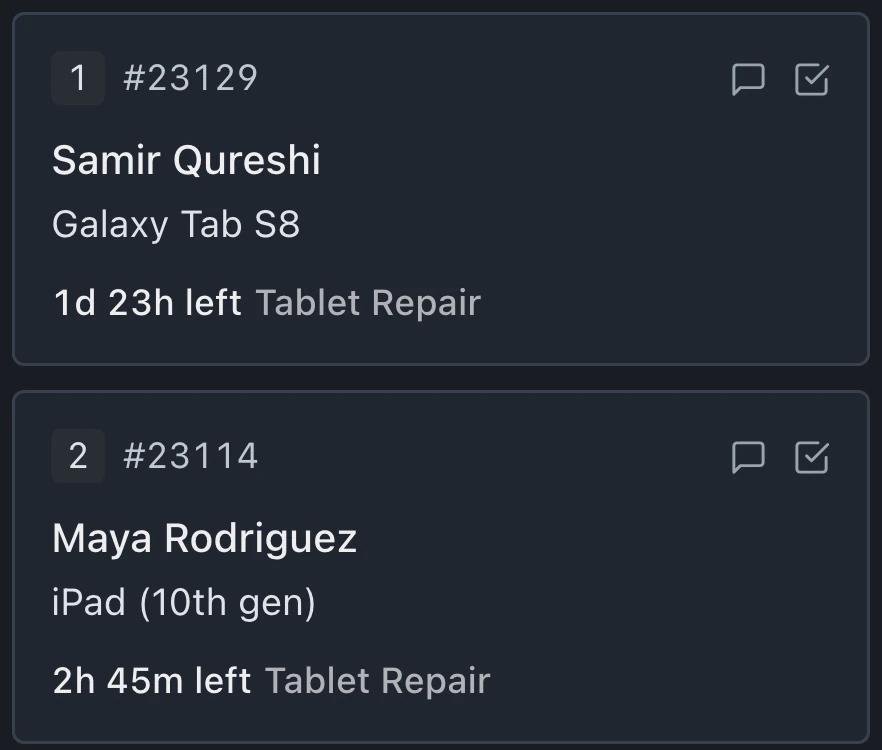
Do turnaround timers count nights and weekends?
Yes. Timers count nights and weekends. Each timer has its own pause statuses, such as Waiting for Parts or Pending Approval; time in them doesn't count. A status timer counts time while the ticket is in that status. Category, queue and all-ticket timers count all time outside their pause statuses.
What happens when a repair runs late?
The board shows time overdue, and the ticket displays Overdue. Enable notifications on the timer and Timer breach in Queue alerts to notify queue members. You can also choose a status for late tickets to move into automatically.
Can new repairs go to a technician's queue automatically?
Status routing rules move tickets to a queue when their status changes. Apply a rule to every ticket or match a repair category, rush tier or device text. Categories can also route new walk-in tickets to a chosen queue.
Which plans include queues and turnaround timers?
Standard, Pro and Business include queues and turnaround timers. Transfers between stores require Business and more than one store. Owners and admins manage timer, routing and queue alert settings.
The waitlist is open for repair shops
Leave your email for access updates. Your name and shop name are optional.
 Watch the product tour 3:34 Follow a repair from check-in to pickup in BenchKey