Merge duplicate customer records
Compare duplicate records in Merge customers and choose which stays. Review what moves, then type the customer's name to confirm the permanent merge.
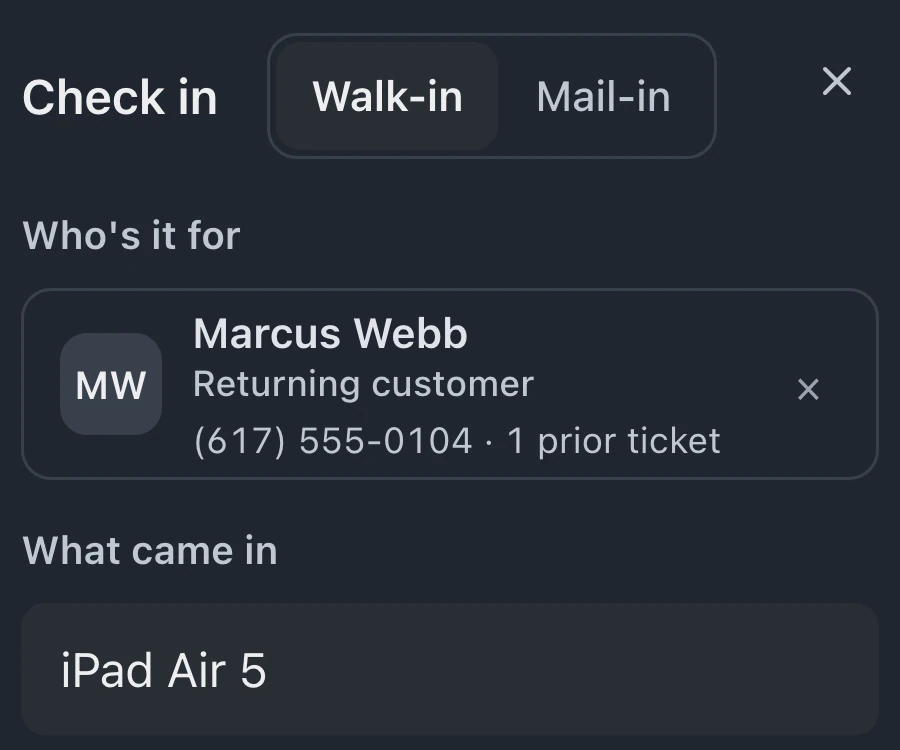
A customer's first check-in creates their record. Search by name, email or phone to review tickets, invoices, estimates and lifetime revenue before starting the next repair.
Check-in creates the record with the ticket. To add someone separately, choose New customer and enter their name. Phone and email are optional.
Search by name, email or phone, or sort by Revenue. Each row shows ticket counts, recorded spending and recent activity.
Overview shows Current work and Lifetime revenue. Open Tickets, Invoices or Estimates for the details, or start a New ticket or New invoice from the profile.
Open an invoice beside the profile to review its items, total and amount paid. Move between invoices with arrow keys. Escape closes the detail. Estimates open the same way.
The profile holds communication preferences and account settings, with controls to review duplicates and handle customer data requests.
Compare duplicate records in Merge customers and choose which stays. Review what moves, then type the customer's name to confirm the permanent merge.
Use Multi-device ticket to check in several devices for a business customer. Selecting Business / fleet customer requires an email on file. Device records and history require Business.
Marketing email shows consent, its source and who recorded it. Staff cannot change it here. Suppress emails stops email follow-ups for this customer.
Preferred language sets the language for built-in customer emails and texts. Shop default follows your shop's setting. Your own status names and templates are sent as written.
Customer records come with every plan. Standard includes 75 new tickets a month. Customer device records require Business.
Compare plans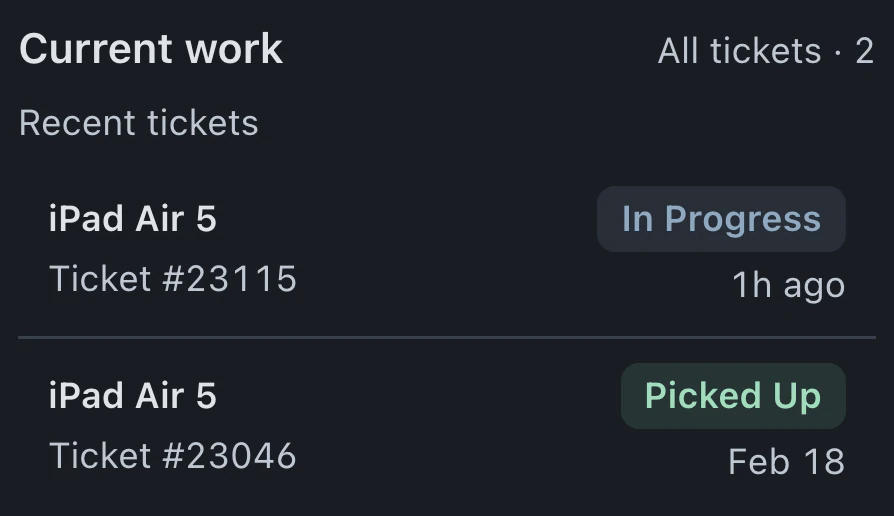
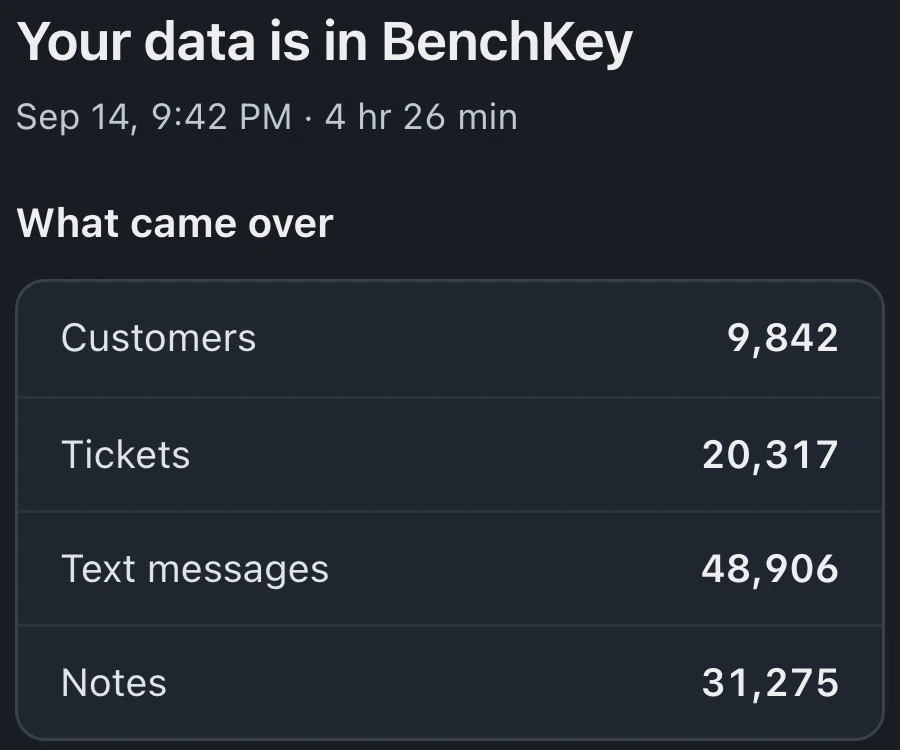
No. The first repair check-in creates the customer's record. You can also choose New customer and enter just a name. Phone and email are optional. Use Migrate data to bring over an existing list.
If New customer finds an existing record, it opens that profile. For duplicates already on file, use More, then Merge customers. Tickets, invoices, estimates, leads, appointments and notes move to the record you keep. The merge is permanent.
Sort the directory by Revenue or Most tickets. Customer rows show recorded spending. The profile's Lifetime revenue gives the total, and Invoices lets you review the individual bills.
Customer records come with Standard, Pro and Business. Customer device records and the Devices list require Business. Memberships, in beta on Pro and Business, add member status to the directory when enabled.
Leave your email for access updates. Your name and shop name are optional.
 Watch the product tour 3:34 Follow a repair from check-in to pickup in BenchKey