Status at the counter
Tickets and checkout show a badge for active members, with warning colors for paused or past-due memberships.
Care plans billed monthly or yearly show membership status on tickets and at checkout. Memberships are in beta; automatic charging and cycle invoices are off, so the shop collects payments itself.
Organize care plans billed monthly or yearly and benefits alongside Program numbers, Membership terms and Policies. Memberships is in beta on Pro and Business.
Create a plan, define benefits, choose policies and publish terms. Price, billing cycle, card provider and benefits cannot change once the plan has members.
With a card processor connected, use Copy signup link. Customers review the price and terms, then join and save a card. Automatic billing remains off during beta.
In an enabled workspace, open Memberships, name and price a care plan, then choose Monthly or Yearly under Billing before saving.
A connected card processor is required to enroll a customer by email. Then add a card separately from the member row if needed; it shows card details once saved.
Collect membership payments yourself. Creating a plan or saving a card does not collect the next payment.
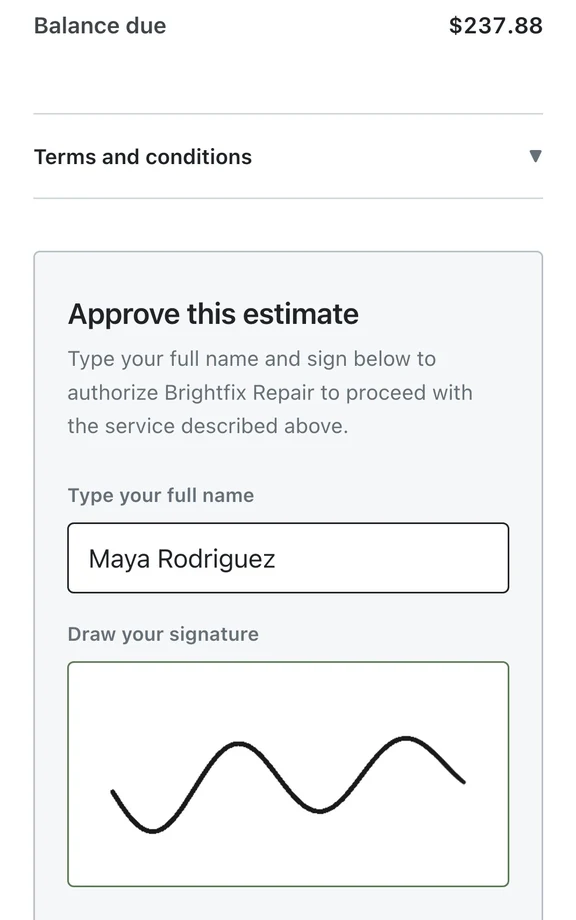
Use Sign now at the counter. Customers review terms, then draw a signature or type their name. The signature and terms are saved; paying the invoice activates the membership.
Tickets and checkout show membership status, benefits and services left this cycle. Apply invoice discounts manually and select Redeem for included services. Paused memberships show benefits as suspended.
With "View customer plans", staff see member status in the ticket's Customer panel and Checkout; plans and member controls are in Memberships.
Tickets and checkout show a badge for active members, with warning colors for paused or past-due memberships.
Square or Stripe handles capture. BenchKey keeps provider references and card display details. Remove card tries to disable or detach the card and always clears BenchKey's reference.
Plan cards show prices and member counts, giving staff a view of enrollment alongside the care plans offered.
A member's row has pause and cancel controls. Staff can verify the resulting status before handling the member's next visit.
Staff review active memberships, past-due accounts and churn. The monthly revenue figure reflects active plan prices, so it does not confirm that those payments were collected.
On their membership page, customers see their plan and status, with a cancellation option. It also explains that the shop collects membership payments while automatic billing is off.
Memberships are in beta and included on Pro and Business plans.
Compare plans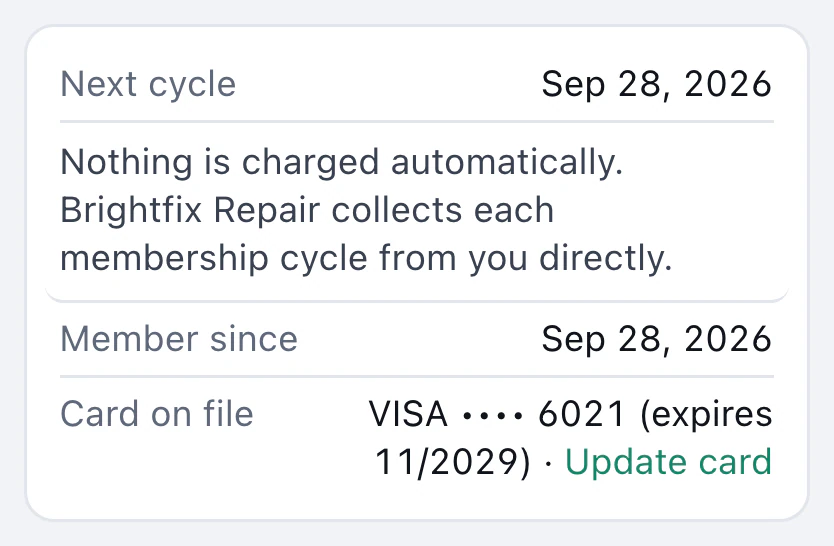
Automatic membership billing is switched off. Cycles do not charge a card or create an invoice in that state. The shop collects payment itself; saving a card does not turn recurring charging on.
A connected card processor is required before enrolling members and saving cards. That setup does not enable automatic billing. Plan definitions can be prepared in an enabled workspace.
Members have a cancellation option on their membership page. Existing members retain access even if your BenchKey plan changes, so they can still manage their own membership.
Leave your email for access updates. Your name and shop name are optional.
 Watch the product tour 3:34 Follow a repair from check-in to pickup in BenchKey