Answer card chargebacks with the repair's recorded evidence

Download a Chargeback response from the ticket: one short PDF with the charge, recorded facts and your response for the bank's reviewer, followed by supporting records. Review it and submit it to your processor.

Watch it work 1:04
Jordan opens #23170, chooses Download Case File, keeps Chargeback response, selects Not as described and adds the shop's response, then generates the PDF, showing page 1 and its exhibits.

Respond when a card dispute arrives

Build the response from the repair ticket's records. Your shop reviews the PDF and submits it to the payment processor.

  1. 1

    Read the processor's notice

    When Stripe or Square reports a card dispute, note the disputed charge, reason and deadline in the processor's notice.

  2. 2

    Open the repair ticket

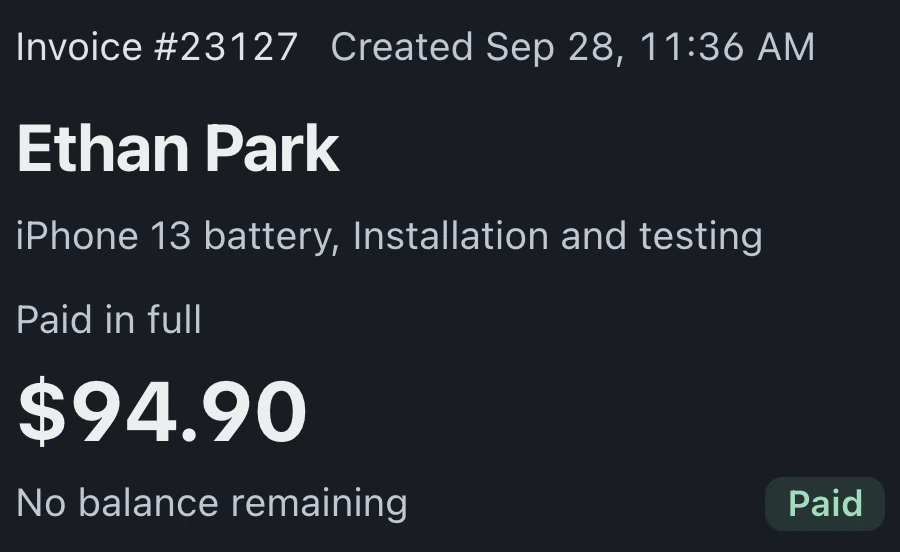
    Find the ticket for that sale in BenchKey. Check the customer, device and invoice against the dispute notice.

  3. 3

    Choose Download Case File

    Open Download Case File from the ticket actions menu or Quick Actions. Keep Chargeback response, the recommended choice.

  4. 4

    Match the payment and reason

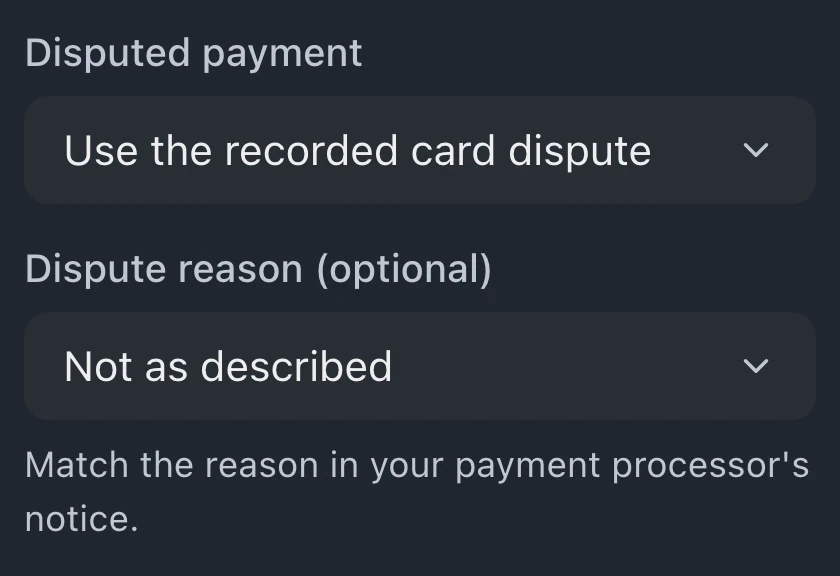
    Under Disputed payment, use the recorded card dispute or choose the paid invoice. Set Dispute reason to match the notice.

  5. 5

    Add Your response

    Say what the customer approved and what work you did, in up to 4,000 characters. Your words appear under Our response after the recorded facts.

  6. 6

    Generate and review the PDF

    Choose Generate & Download. Check the charge, your response and exhibits against the notice, and read the PDF before sharing it.

  7. 7

    Submit through your processor

    Upload the PDF as dispute evidence in your Stripe or Square dashboard before the processor's deadline.

Keep evidence with every repair

  1. 1

    Record the estimate approval

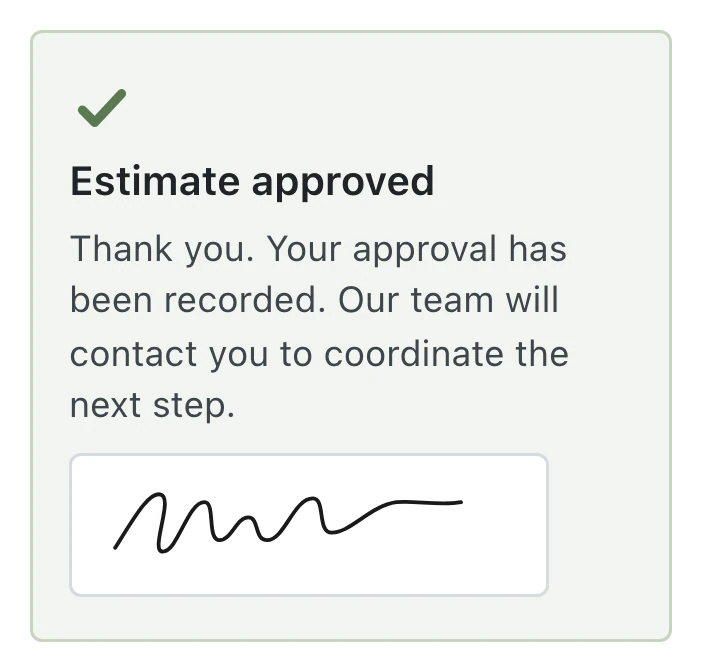
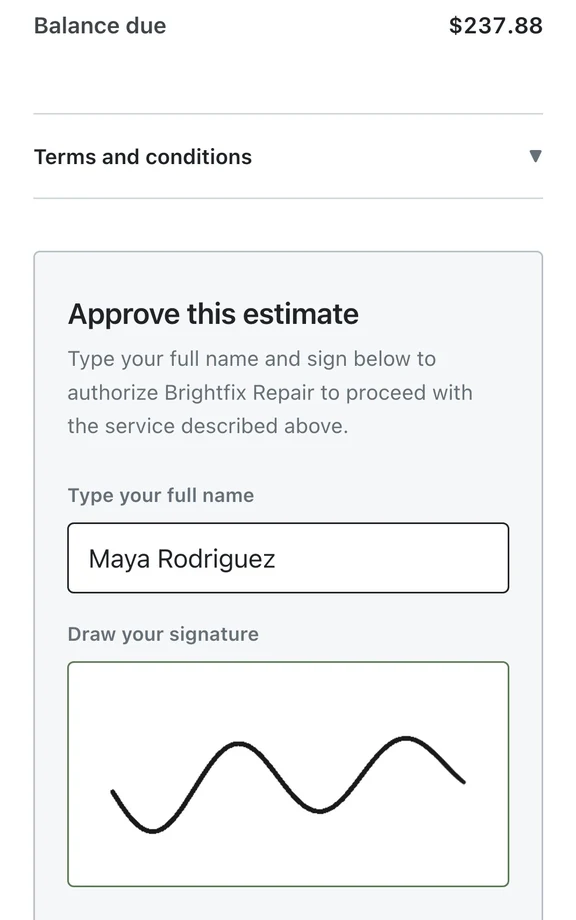
    Get the estimate approved in BenchKey with a typed name and drawn signature. Exhibit B keeps the estimate lines and approval record together.

  2. 2

    Save photos at check-in

    Save check-in photos on the ticket for Exhibit E. Condition checklist answers stay in the Complete case record.

  3. 3

    Keep messages on the ticket

    Keep texts and email on the ticket instead of a personal phone. Exhibit D records the conversation, including what you told the customer before payment.

See it in the app

The shop and customers are made up. English narration with captions in English, Spanish, and Brazilian Portuguese.

Give the reviewer a short summary first

Page 1 brings the disputed charge and recorded facts together. Your response follows the facts, and the exhibit index points to the supporting records.

  1. 1

    Start with the disputed charge

    The summary begins on page 1 with the charge and recorded facts, followed by your response. Longer responses continue onto another page.

  2. 2

    Trace each fact to its record

    Each recorded fact cites its exhibit. The index gives the exhibit's page number, so the reviewer can find the approval, payment or message behind it.

  3. 3

    Internal notes stay out

    Internal technician notes never appear in the Chargeback response. The separate Complete case record is for legal or internal use, with notes only if you choose them.

  4. 4

    See when your PDF was generated

    The Record integrity page shows when your PDF was generated from the shop's records in BenchKey. It also lists the records included.

Choose the document for the job

Download Case File offers a Chargeback response for card disputes and a Complete case record for legal or internal use. Both draw on the ticket's stored records.

Chargeback response
Use it when a card payment is disputed. A short summary of the charge and recorded facts leads into your response and indexed supporting exhibits.
Complete case record
Keep the ticket history for legal or internal use. Internal technician notes appear only if you choose them, on their own page marked PRIVILEGED.
A fingerprint for each PDF
When you choose Generate & Download, BenchKey stores a SHA-256 fingerprint of your PDF in the case audit log.
Access follows staff permissions
Staff whose role can edit tickets and view invoice payment methods can download either document. Case files are included on every plan.

Chargeback response questions

Case files are included on every plan: Standard, Pro and Business.

Compare plans
Will this win my chargeback?

No outcome is promised. The Chargeback response gives the reviewer a summary of the disputed charge, recorded facts with exhibit references, your response and supporting records. Review it against your processor's evidence requirements.

Where do I upload the PDF?

Upload it as dispute evidence in your processor's dashboard, such as Stripe or Square, before the deadline in their notice. BenchKey generates the PDF. Your shop submits it; BenchKey does not contact the processor or track deadlines.

Can the customer or bank see our internal notes?

Internal technician notes are never included in the Chargeback response. Only the separate Complete case record offers them, off by default, on a page marked PRIVILEGED. Leave that option off when sharing with payment processors or other third parties.

What if a ticket has several disputes or payments?

In Disputed payment, use the recorded card dispute or choose the paid invoice for the charge. If several disputes are recorded, use Recorded card dispute to choose the one matching your processor's notice.

Does it include texts from a technician's personal phone?

Only messages recorded in BenchKey appear in the PDF. Texts kept only on a personal phone are outside that record. Keep repair conversations on the ticket so they are available when you need a response.

How do I change my response?

Reopen Download Case File, revise Your response and choose Generate & Download again. BenchKey builds a new PDF from the ticket's stored records at that moment. Review the new PDF before sharing it.

The waitlist is open for repair shops

Leave your email for access updates. Your name and shop name are optional.

Watch the product tour 3:34 Follow a repair from check-in to pickup in BenchKey