Run your repair stores in a shared account

Each store's tickets, register and stock belong to its counter. Customer history is shared across locations, staff access is assigned by store, and the Stores dashboard shows the operation together.

Watch it work 1:05
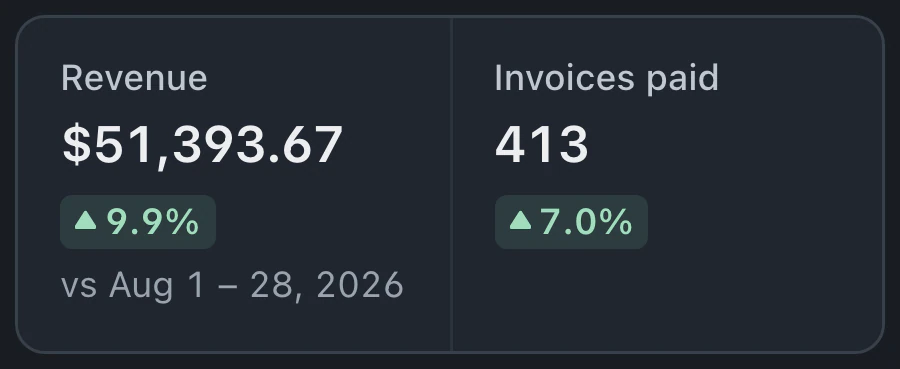
Settings lists the stores with their addresses, phone numbers and setup status. The owner switches stores in the sidebar, then opens the Stores dashboard to compare collected revenue and invoice counts.

Each counter has its own operating location

  1. 1

    Add the store on Business

    Owners and people with billing permission can add stores in Locations settings. Setup includes the cost review, store details and a checklist to complete.

  2. 2

    Assign staff to their stores

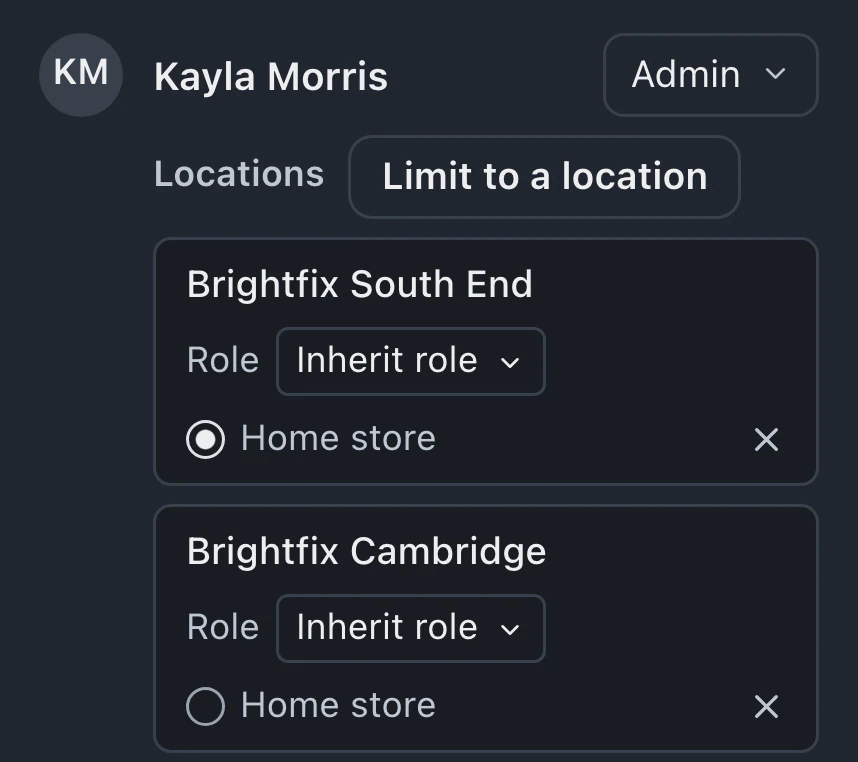
    Team and Access defines the locations each employee can use, their role at each store and their home store.

  3. 3

    Select the counter before taking work

    In the sidebar, the location switcher selects the operating store. Intake, the queue and register then use that location for the counter's work.

See it in the app

The shop and customers are made up. English narration with captions in English, Spanish, and Brazilian Portuguese.

Workspace setup for company stores and franchises

Company-owned stores share one workspace, while franchisees each run their own and corporate uses a separate brand console.

Company-owned stores

One workspace for every store

Brightfix Repair Shared workspace Business

Shared across stores

  • Customers and history
  • Team accounts
  • Item catalog
  • Brightfix South End

    Own stock counts

    Own registers and drawers

  • Brightfix Downtown

    Own stock counts

    Own registers and drawers

  • Brightfix Cambridge

    Own stock counts

    Own registers and drawers

Who can see what

Jordan Reyes Owner All stores
Maria Lopez Tech Brightfix South End
Devon Brooks Tech Brightfix Downtown
Kayla Morris Admin Brightfix South End, Brightfix Cambridge

Stock transfers

  1. 1 Create transfer
  2. 2 In transit
  3. 3 Received

Sending reduces source stock; receiving adds destination stock. Rebalance suggests transfers for staff to review.

Who owns the data
One business owns the workspace and every store's customer, ticket, stock and payment records.
Who can see what
Owners see every store. Staff can be limited to selected stores with a role at each. With none selected, staff can access every store.
Plan and setup
Business costs $149 a month for the first store and $79 a month for each extra store.
Franchise network

Separate franchisee workspaces, with a brand console

Your brand Brand console
  • Store rankings from nightly figures
  • Royalty statements and outstanding balances
  • Published statuses, templates and terms

Nightly figures from each store

  • North franchisee

    Own workspace Pro

    Own customers, stock and registers

    Corporate access Granted

  • Central franchisee

    Own workspace Business

    Own customers, stock and registers

    Corporate access Granted

  • South franchisee

    Own workspace Standard

    Own customers, stock and registers

    Corporate access Revoked

Royalty statements

  1. 1 Generate drafts
  2. 2 Mark final & notify franchisee
  3. 3 Record payment

BenchKey calculates royalties. The brand records payments; BenchKey does not collect them automatically.

Who owns the data
Each franchisee owns its workspace and the customer records held there.
Who can see what
Corporate receives nightly figures regardless of access. Franchisee owners can revoke or restore workspace access; visits are recorded and reported to owners. Warranty lookup shows repairs without customer details.
Plan and setup
Each franchisee pays for its own BenchKey plan, with Business required for more than one store.Arrange the brand console with BenchKey. Join the waitlist to discuss your network.

Operations across company-owned stores

Local performance reports, parts transfers and shared customer details support work across counters.

Performance by store

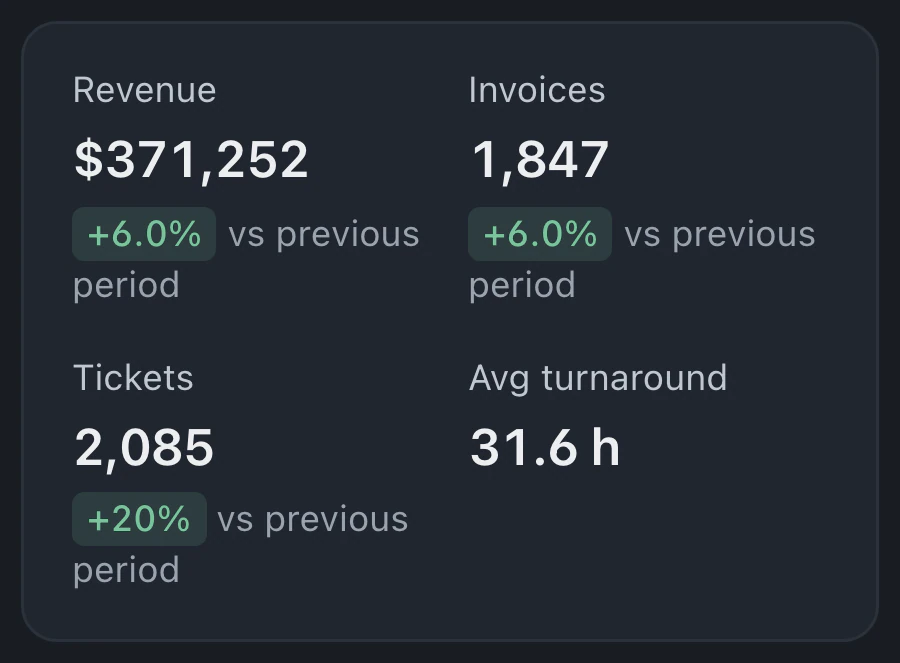
Sort stores by revenue, ticket activity or turnaround. Register and low-stock alerts flag work to review. A store's report opens with its location already selected.

Stock transfers with receiving history

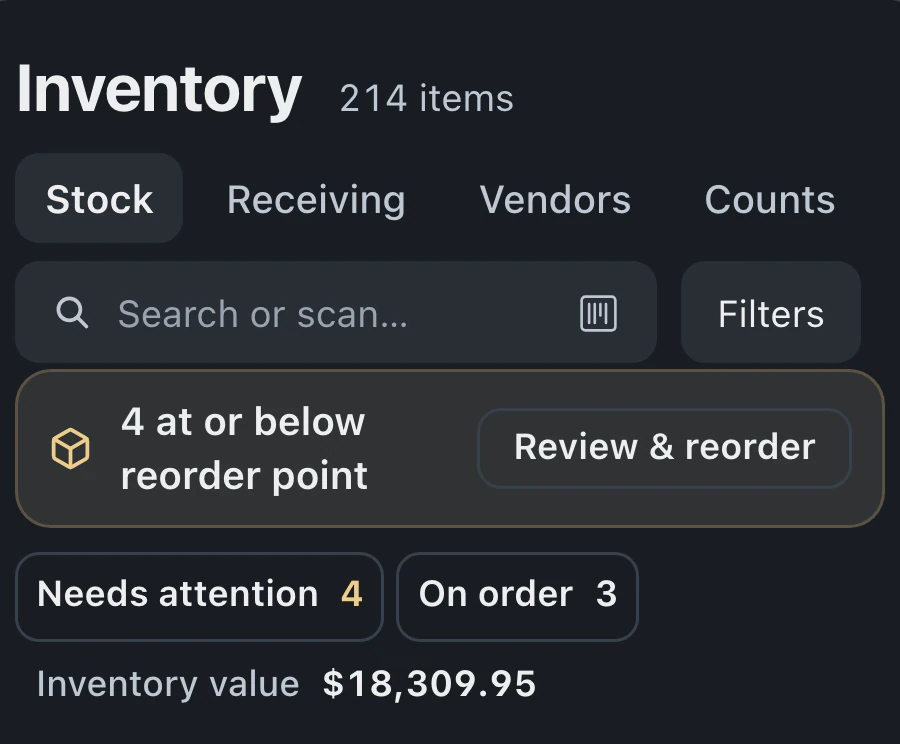
Each location has its own stock count. Log parts as sent and received, or review suggested transfers that match shortages with stock elsewhere.

Customer history across counters

Customer records and repair history are shared within the workspace for staff with access to review. Individual tickets retain their operating location.

Contact details for each store

Keep each store's address, phone and email in Locations settings. Receipts and drop-off receipts use these details; emails, texts and invoice PDFs use the business profile's contact details.

Filter appointments by store

In Calendar, switch the store filter from All stores to one store to see its appointments for the day.

Location details for staff and customers

Work at the selected store

Staff select an authorized location for intake and checkout. Owners can review store totals together and open an individual location's report for the details.

Store details on drop-off receipts

At check-in, the drop-off receipt shows the store's address and phone beneath the shop's name, along with the customer's ticket number, device and reported issue.

Multi-store pricing and workspace access

Multi-store operations require Business, billed monthly per store with every Business feature included, while Standard and Pro cover a single store.

Compare plans
How much does each additional store cost?

At US list pricing, Business costs $149 a month for the first store and $79 a month for each additional store. Every store receives the Business features. Warehouse locations are free and cannot operate a register.

How do I limit an employee to selected stores?

Assign stores and a role at each in Settings → Team & Access. Owners can always open every store; admins with no assignments can too. Other staff with no assignments can open every store only while nobody in the shop has store assignments. Once anyone has assignments, those staff cannot open any store.

What happens to open repairs when I deactivate a store?

BenchKey checks for open tickets and upcoming appointments. You choose another active store to receive that work, and reassignment finishes before the original location is deactivated.

When can I add more stores after choosing Business?

Business includes multi-store operations, but adding stores may not yet be enabled for your account. If Locations is missing under Business settings, open Help and choose Talk to a person to check availability.

The waitlist is open for repair shops

Leave your email for access updates. Your name and shop name are optional.

Watch the product tour 3:34 Follow a repair from check-in to pickup in BenchKey