

Multi-store setup & operations
Multi-store keeps company-owned locations in one workspace: one customer history and team, with the operating work, money, inventory and customer identity attached to the store where they belong. More than one store is part of Business: $149 a month for the first store and $79 for each extra store (US prices), and every store gets everything in Business. See the feature page and pricing.
What is shared and what belongs to a store
Section titled “What is shared and what belongs to a store”Shared across the workspace:
- Customer records and complete repair history
- The item catalog, while on-hand quantities remain separate
- Team accounts, with optional store limits and per-store roles
- Business defaults that a store can override where supported
Attached to an operating store:
- Tickets, appointments, intake and sales
- Register sessions, drawers, receipt printers and Square location mapping
- Stock counts, receiving destinations, transfers and cycle counts
- Public booking availability and store-facing contact/brand details
- Reporting, targets and exceptions
Add or clone a location
Section titled “Add or clone a location”- Open Settings → Business → Locations and choose Add location. On Pro, Add a store shows what Business costs instead of adding one. The first time on Business, the Add another store card asks you to confirm instead: choose Add a store, read what the store will cost, and confirm; multiple stores switch on for your shop and the form opens. The owner, or someone with billing permission, adds stores. You can also start from Add a store in the store switcher in the left icon rail.
- Enter the name, address, phone, email, timezone and currency. Mark it as a Warehouse only when it should hold and transfer stock without opening a register.
- To start from a known-good counter, choose Clone configuration from. Cloning copies the store settings overlay and tax bindings; it does not copy stock, tickets or history.
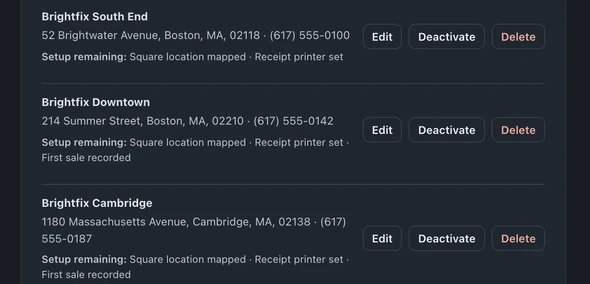
- Save, then work through the setup checklist shown on the location row.
Edit the location again to map its Square location, receipt printer and register drawers. For messaging and documents, open its Identity & branding card and set any store-specific values:
- Review links and public phone
- SMS from-number, email display name and reply-to
- Document logo and header
- Ship-from address for labels
Blank identity fields fall back to the main business profile.
If you’re on Business and Settings → Business has no Locations yet, adding stores hasn’t reached your shop: ask from Help → Talk to a person.
Use the Stores dashboard
Section titled “Use the Stores dashboard”Open Stores in the left icon rail for the operating view. Switch between Today, Week and Month, then sort the table by store, collected revenue, invoices, tickets created or closed, turnaround, open A/R or target attainment. Restricted users only receive the stores they are allowed to see.
Each row shows:
- Prior-period changes and a 14-day revenue trend
- Register status and any drawer discrepancy
- Low-stock count
- Monthly revenue target and current attainment
Select a store name to open Reports already filtered to that location. The bottom row rolls up all stores in view.
The exception strip is deliberately specific. It flags a register left open, a drawer over/short beyond the configured threshold, an open store with no sales yet, or low stock. When nothing is wrong, it says all stores look healthy.
To set targets, select the target cell on a store row and enter its monthly revenue and ticket goals.
Switch the operating store
Section titled “Switch the operating store”The location switcher in the left icon rail sets the active store for the workspace. Staff only see locations their account can use.
- Queue and intake create work at the active store.
- All tickets can filter across stores and labels rows with their store.
- Quick sale defaults to the active store; a multi-store user can explicitly choose another store before payment.
- The register opens for the active store and, when that store has more than one drawer, asks which drawer to use.
A warehouse cannot open a register.
Move and rebalance inventory
Section titled “Move and rebalance inventory”The same catalog item has a separate on-hand quantity at each location. In Inventory, the all-locations view adds one stock column per store.
To move stock manually:
- Open Stock transfers and choose the source and destination.
- Add one or more items and quantities, then create the transfer.
- Mark it sent when it leaves the source and received when it arrives. The two-store movement stays visible in the transfer history.
The Rebalance tab compares shortages with available stock elsewhere. A suggestion includes the part, the source, the destination and a quantity. Draft transfer opens the normal transfer form with those values filled in; you still review and create it.
Recorded orders also carry a receiving location. Set a default receiving store or change the destination before receiving the order. Inventory counts are store-scoped.
Let customers choose where to book
Section titled “Let customers choose where to book”When public booking has multiple stores available, the first screen is Choose a location. The page shows each store and whether it is open today, then loads available slots for the chosen store. The submitted appointment keeps that location.
The store’s identity overrides control the contact details customers see on messages, receipts, PDFs, portal pages and review requests.
Assign the team
Section titled “Assign the team”In Settings → Team & Access, a team member can have:
- Access to selected stores
- A role at each store: inherit the workspace role, admin, tech or viewer
- One home store for their default operating context
For non-owner accounts, no location assignments means access to every location. Owners are unrestricted by design. Use Open locations matrix to assign a larger team across stores in one grid; fine-grained roles and home stores remain on each member row.
Deactivate a store safely
Section titled “Deactivate a store safely”BenchKey keeps at least one active store. When a location still has open tickets or upcoming appointments, Deactivate asks where to move them and completes the reassignment before shutting the store down. Choose another active, non-warehouse location.
Billing
Section titled “Billing”More than one store is part of Business, with unlimited people. Your first store is $149 a month and each extra active, non-warehouse store is $79 a month (founders: $99 and $59). Warehouses are free, don’t count as stores and do not run a register. A new store is charged right away for the rest of the billing period (if that payment fails, the store isn’t added); a deactivated store comes off the next bill with no credit. Once you have two or more locations, the Locations & billing card on Plan & Billing shows each billed store, any free warehouses and the monthly total.
Franchisees operating in separate workspaces use the additional brand-level controls described in Franchise operations.