

The inbox: triage everything in one place
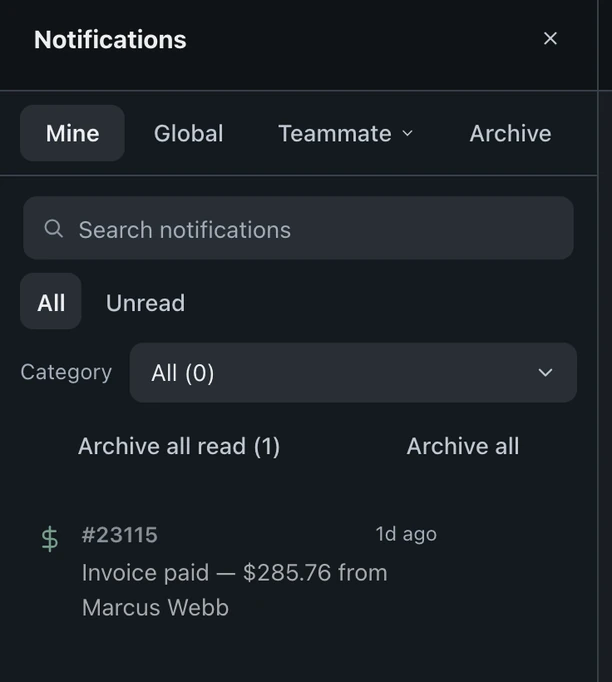
Choose Notifications, the bell at the top of the left icon rail, to open the inbox beside the rail. It collects customer replies and other activity for triage; everyone has the same views, but some items depend on permissions.
The reply channel changes from Email to SMS, and the sent recovery update appears in the conversation as Delivered. This recording uses fictional shop data in the real app.
What lands here
Section titled “What lands here”- Customer email and SMS replies
- Payments received
- Estimate approvals
- Portal messages
- @mentions from teammates
- Ticket assignments
Stacked per ticket
Section titled “Stacked per ticket”Notifications stack per ticket, so multiple messages about one repair take one place in the list and leave other tickets visible.
The tabs
Section titled “The tabs”- Mine, what’s yours
- Global, new tickets, mail-ins and system alerts
- Teammate, notifications for any teammate you choose
- Archive, what’s been handled
Working an item
Section titled “Working an item”- Click any item in the inbox.
- You land on its ticket with the full history.
- Handle it there, the conversation, the money, the status, it’s all on the ticket. See messaging for how replies work.
Keeping it clean
Section titled “Keeping it clean”Archive all read clears handled items. Read notifications can also archive automatically at the configured age, measured from creation. Shops cannot change this age or disable auto-archive; message history stays on the ticket.
The inbox tells you what needs a human, the queue tells you what’s on the bench.