

Switch from RepairShopr
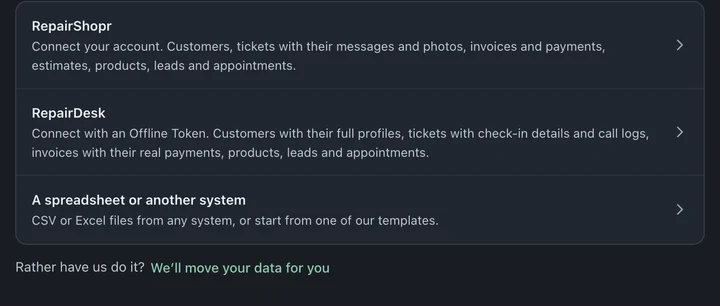
Connect your RepairShopr account in Settings → System → Migrate Data and BenchKey reads your customers, tickets, invoices and more straight from RepairShopr. RepairShopr itself is never changed. Start with customers, check a few, then bring over the rest.
1. Create a token in RepairShopr
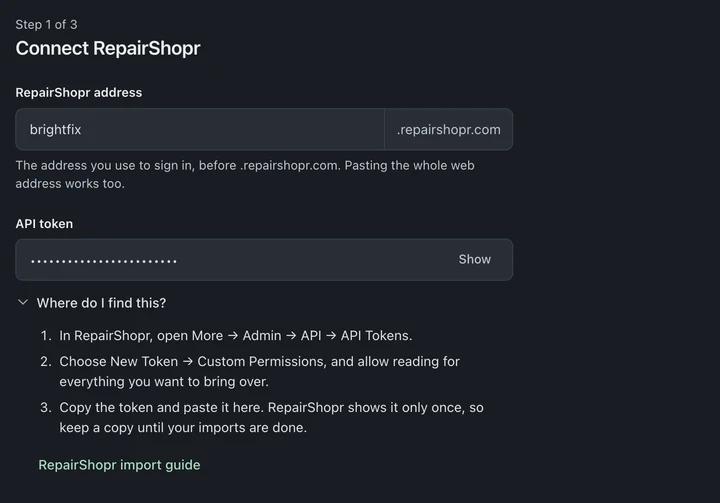
Section titled “1. Create a token in RepairShopr”- In RepairShopr, open More → Admin → API → API Tokens, then New Token.
- Choose Custom Permissions, give the token a name you’ll recognize, and allow access to every kind of record you want to bring over. Invoice access is required if you want to import invoices. Pick an expiry that covers your move.
- Create the token and copy it somewhere safe. RepairShopr shows the full value only once.
- Note your RepairShopr address: the part before
.repairshopr.comin the address you use to sign in.
Don’t paste the token into messages or screenshots.
2. Connect it in BenchKey
Section titled “2. Connect it in BenchKey”- Open Settings → System → Migrate Data and choose RepairShopr.
- Enter your RepairShopr address and API token. Open Where do I find this? for the token steps.
- Under What to bring over, choose Customers and products first · Recommended or Everything at once, or open Choose exactly what to bring to select the kinds of records. Then choose Continue.
- At Ready to bring over N records, check the counts (customers are exact; tickets, invoices and payments are close estimates), then choose Start import.
What comes over
Section titled “What comes over”- Customers, with phones, including extra numbers, emails and addresses.
- Tickets, with comments, messages and their attached files. The files transfer to BenchKey.
- Ticket details: device password, ticket type, issue type, technician, signatures and uninvoiced charges.
- Invoices, with line items, and payments.
- Estimates, with line items, and products and inventory.
- Leads, in every status, including New and Won.
- Assets and devices, as device records.
- Appointments and canned responses (saved replies).
The primary customer comes over. Additional named contacts stay in RepairShopr.
A RepairShopr account with more than one store can’t be imported directly (BenchKey refuses it before writing anything and explains the one-store limit and per-store file option). Export each store’s records and use the spreadsheet import for each, choosing the matching BenchKey store.
How long it takes
Section titled “How long it takes”Duration depends on record volume, ticket histories, attached files and RepairShopr’s shared reading limits. Your import may wait for other work. It runs on BenchKey’s servers and saves progress, so you can close the tab and return to Migrate Data to check it.
Check before you switch the counter
Section titled “Check before you switch the counter”Open a few customers you know well and compare their tickets, invoice totals and old reference numbers with RepairShopr. If rows didn’t come over, Download row report shows which and why. Set up your statuses, templates and message automations before the first new repair.
For eligible imports, Undo this import is available for 7 days after the import finishes and removes unchanged imported records, including unused customer profiles it created. Imports that brought in invoices, estimates or payments can’t be undone. See Undo an import for what it can and can’t remove.
Move over for good
Section titled “Move over for good”Right before you switch, rerun for new records; imported records are skipped. Choose one route for your tickets: a direct connection or files. Tickets imported through one route aren’t matched by the other. Invoices and payments come from one import source per shop. Unclear matches are listed for owner review, never merged. Check familiar records, then revoke the token in RepairShopr.
You can also import RepairShopr’s CSV or Excel exports instead of connecting: choose A spreadsheet or another system, then RepairShopr CSV under Where are these files from?, and follow the spreadsheet steps.