

Set up your first repair
Start with one repair so you can learn how the queue and ticket work together. You do not need to finish every setting before creating a ticket.
Create a repair ticket, choose its status and queue, explore the ticket panels, and find the repair again. (1 min 33 s)
Before you begin
Section titled “Before you begin”You need access to your shop’s BenchKey workspace. If your shop already uses BenchKey, ask your owner or an admin to invite you (Settings → Team & Access → Members → Invite member). If your shop isn’t on BenchKey yet, join the waitlist. If you already have access, sign in. Can’t sign in? See Signing in.
Want to try it first with sample records? Practice mode runs the same steps in a separate workspace, with no customer messages. Otherwise, use a sample customer you control while learning. Customer emails need no setup: BenchKey sends them from its own address, and a new shop starts with an email switched on when a ticket is created and when a ticket reaches many built-in statuses, such as In Diagnosis, Waiting for Parts and Ready for Pickup. Texts go out only on Pro or Business, once texting is connected. Before you create tickets or change statuses for real customers, check Settings → Workflow → Statuses & Customer Messages (owners and admins).
1. Open the repair queue
Section titled “1. Open the repair queue”Choose All tickets in the left sidebar. If the sidebar shows only icons, choose Open sidebar at the bottom to show the labels (on a computer you can also hover over an icon to see its name). On a phone, choose Tickets in the bottom bar. The list shows the ticket number, customer, device, status, queue, and creation date; narrower windows hide some columns.
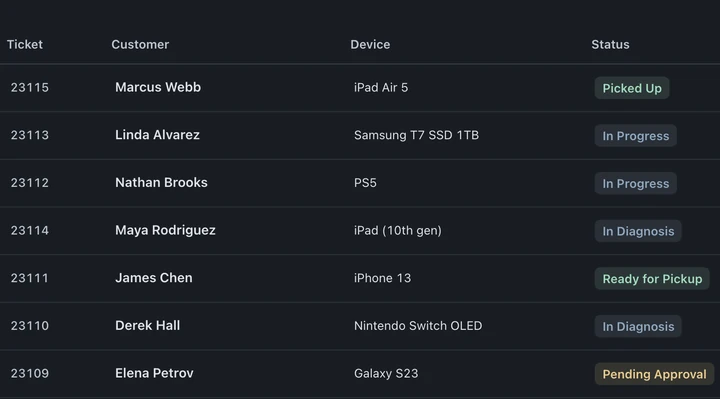
What you should see: one row per repair. A new workspace may have no tickets yet.
2. Create a ticket
Section titled “2. Create a ticket”Select New Ticket in All tickets, or choose the + icon in the left rail, Create new → New ticket. In Check in, choose Walk-in or Mail-in. Enter the customer under Who’s it for, then the device and issue under What came in. Choose a queue and add notes under Details. Review the form, then select Create Ticket.
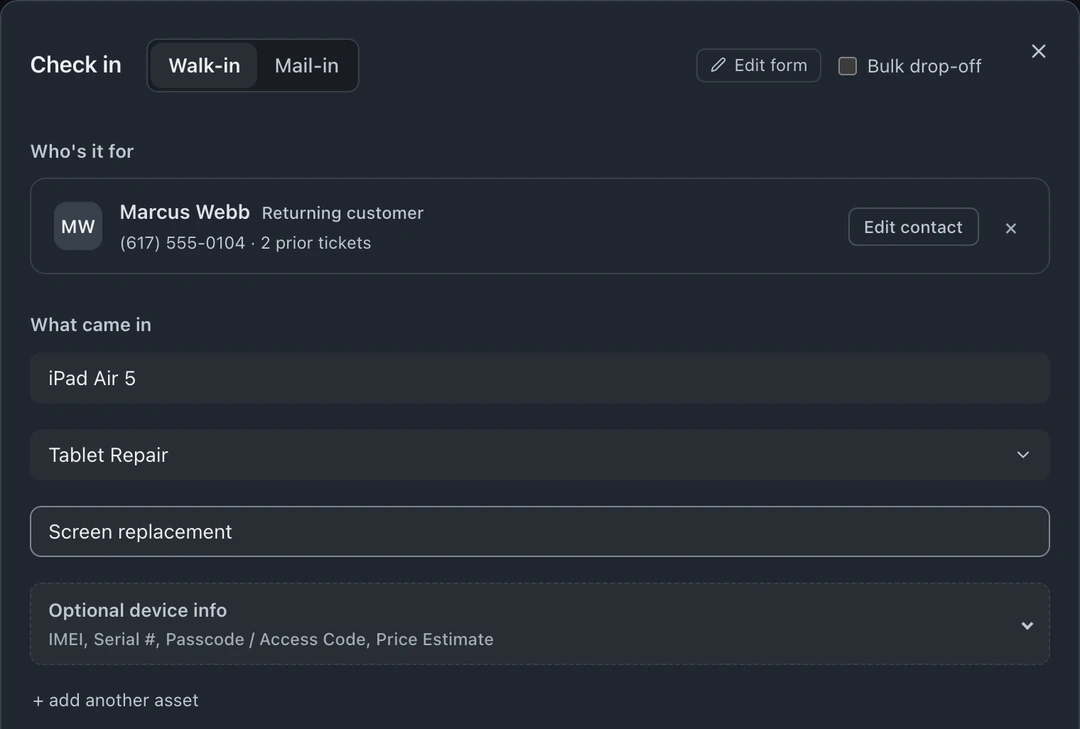
For a returning customer, choose the matching customer record when offered. Check that the phone and email belong to the person in front of you.
What you should see: a ticket with its own number. See creating tickets for the other ways work enters the queue.
3. Find and open the repair
Section titled “3. Find and open the repair”Choose Search tickets in the top bar and search by ticket number, customer name, phone, email, or device. Select the matching ticket. You can also open a row in All tickets. The ticket opens as a page with its own tab in the top bar.
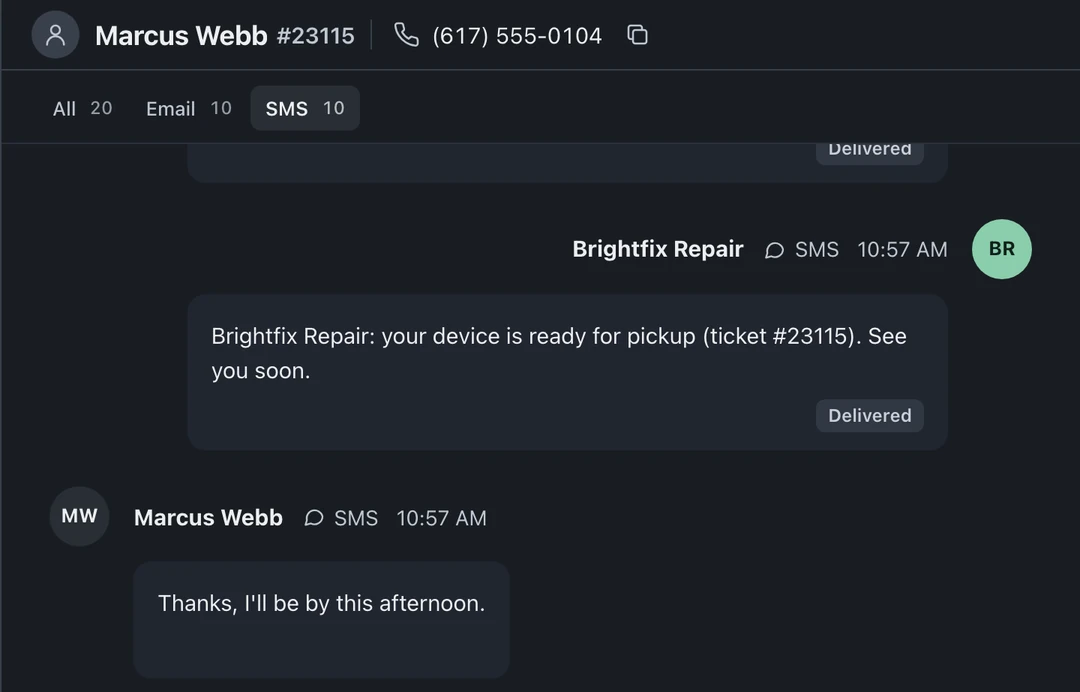
What you should see: the customer name, ticket number, phone, and email above the conversation. Use the icons at the right edge to open the Ticket, Customer, or Device panel. The screenshots use fictional data; your messages and notes will differ.
4. Check the next step
Section titled “4. Check the next step”Open the Ticket panel at the right edge. Review the Status and Queue dropdowns. The Due date field below them offers Add due date. Use statuses that match how your shop works, such as In Diagnosis, Waiting for Parts, and Ready for Pickup. Your shop may use different names.
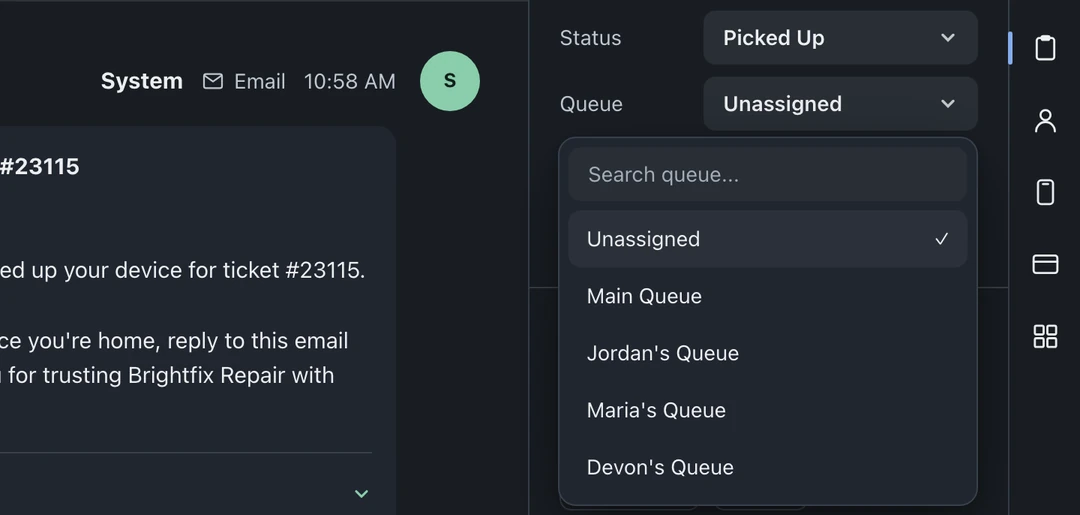
Before changing a status, check whether your shop has attached a customer message or other automation to that change. Learn how to configure these in statuses and automations.
5. Set up the next part of your workflow
Section titled “5. Set up the next part of your workflow”Choose the guide for the task you want to complete next:
- Check-in and kiosk: decide what your shop collects at intake.
- Estimates: prepare the proposed work and request approval.
- Invoices and payments: invoice the work and configure payment options.
- Import your data: bring existing records into BenchKey after reviewing the import.
If a control is missing, check that you are in the correct shop or location, and that your role includes the permission (your owner sets roles in Settings → Team & Access, see Team & roles). If the app says a feature is on another plan, see Plans, billing & your trial.