

Switch from RepairDesk
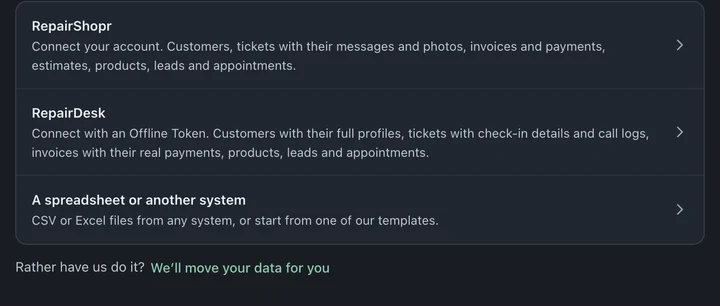
Connect your RepairDesk account in Settings → System → Migrate Data and BenchKey reads customers, tickets, invoices, payments, inventory, call logs, leads and appointments directly. RepairDesk stays unchanged. Connect with an Offline Token or choose Use RepairDesk sign-in instead.
1. Create an Offline Token in RepairDesk
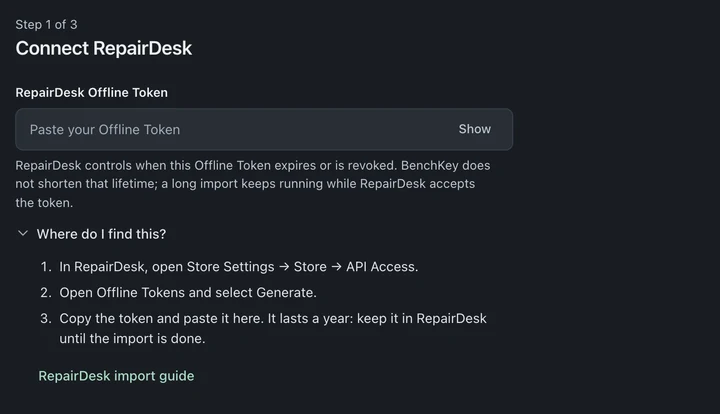
Section titled “1. Create an Offline Token in RepairDesk”- In RepairDesk, open Store Settings → Store → API Access → Offline Tokens.
- Choose Generate and copy the token. RepairDesk labels Offline Tokens with a one-year expiry.
Keep the token private: don’t paste it into messages or screenshots. Old-style RepairDesk API keys don’t work; BenchKey tells you if you paste one.
2. Connect it in BenchKey
Section titled “2. Connect it in BenchKey”- Open Settings → System → Migrate Data and choose RepairDesk.
- The Offline Token form opens first. Paste your token into RepairDesk Offline Token.
- Under Options, you can add Your store’s phone number and Your store’s email domain. They help BenchKey tell messages your shop sent from messages customers sent.
- Under What to bring over, choose Customers and products first · Recommended or Everything at once, or open Choose exactly what to bring to select the kinds of records. Choose Continue, check the counts, then choose Start import.
Or connect with OAuth
Section titled “Or connect with OAuth”At the bottom of the token form, choose Use RepairDesk sign-in instead. This opens Sign in with RepairDesk, which uses an OAuth client you create in RepairDesk:
- Enter the RepairDesk Client ID and RepairDesk Client Secret, then choose Save & continue.
- Copy the Redirect / Callback URL BenchKey shows and save it in the RepairDesk OAuth client.
- Choose Authorize BenchKey, approve in RepairDesk, and wait for RepairDesk is connected before you choose Preview import.
When you’re done, delete the BenchKey OAuth client in RepairDesk under Store Settings → Store → API Access.
What comes over
Section titled “What comes over”- Customers, with their profile fields.
- Tickets, with their statuses, SMS and email messages, team-only notes, device photos and status history.
- Check-in details: passcode, device custom fields, accessories, device notes, due date and referral source.
- Invoices, including those not tied to a ticket. Refund invoices arrive as $0 records.
- Payments on ticket invoices, as real payment records with their actual dates and methods, including split payments. Invoices sold without a ticket arrive with one summary payment each.
- Inventory items.
- Call logs, leads and appointments.
Files attached to staff notes stay in RepairDesk because its API does not provide them. Download any you need there.
Estimates need RepairDesk’s CSV export. Import it through the file option in Migrate Data; RepairDesk’s API has no estimates endpoint.
A RepairDesk account with more than one store can’t be imported directly (BenchKey refuses it before writing anything and explains the one-store limit and per-store file option). Export each store’s records and use the spreadsheet import for each, choosing the matching BenchKey store. RepairDesk’s Invoices Full Excel export has its own upload option there.
How long it takes
Section titled “How long it takes”Duration depends on record volume, ticket histories, attached files and RepairDesk’s shared reading limits. Your import may wait for other work. It runs on BenchKey’s servers and saves progress, so you can close the tab and return to Migrate Data to check it.
If RepairDesk stops accepting the token during an import, some records may already be in BenchKey. When you see RepairDesk stopped accepting the connection, choose Reconnect and continue if the token is still in RepairDesk. Otherwise, choose Contact support about this import before starting another import with a replacement token.
Check before you switch the counter
Section titled “Check before you switch the counter”Open a few customers you know well and compare their repairs and invoice totals with RepairDesk. If rows didn’t come over, Download row report shows which and why. Set up statuses, automations, templates and intake forms before the first new repair.
For eligible imports, Undo this import is available for 7 days after the import finishes and removes unchanged imported records, including unused customer profiles it created. Imports that brought in invoices, estimates or payments can’t be undone. See Undo an import for what it can and can’t remove.
Move over for good
Section titled “Move over for good”- Import a small sample and check it.
- Run the full import, check the results, then send new repairs into BenchKey from an agreed cutover time.
- Right before cutover, rerun for new records; imported records are skipped. Choose one route for your tickets: a direct connection or files. Tickets imported through one route aren’t matched by the other. Invoices and payments come from one import source per shop. Unclear matches are listed for owner review, never merged.
- Revoke the token (or delete the OAuth client) in RepairDesk, and update your website’s lead widget and customer instructions.
Comparing the products first? See BenchKey and RepairDesk.