

Automatic review requests
Review requests, sent by hand or automatically, are part of Pro and Business. They can follow an in-store payment or a delivered return shipment. Configure the link, channel, and timing, then use the request record to see what was scheduled or sent.
Set it up
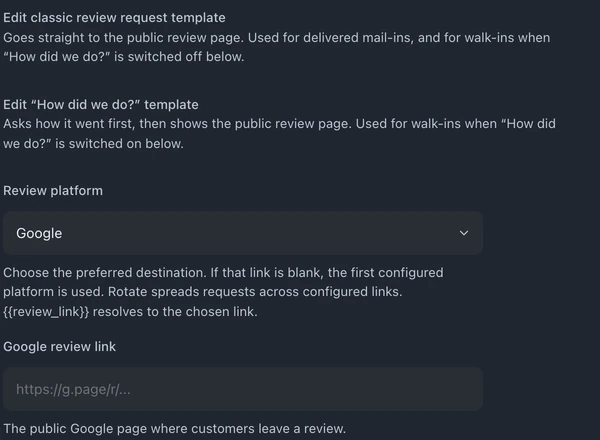
Section titled “Set it up”- Open Settings → Communications and find Review requests. Settings search for “review” can take you there.
- Add your shop’s review link and enable the channels you intend to use. SMS needs a connected texting provider and a permitted recipient; email needs a working address.
- Review the message template. Use a clear invitation to share feedback.
- Set the walk-in delay, optional reminder, and cooldown. Automatic requests follow the configured payment or return-delivery event; changing a ticket to an arbitrary status is not the same trigger.
- After an eligible event, inspect the request’s outcome. Scheduled, skipped, provider-accepted, and confirmed delivery states describe different results.
Check a missing request
Section titled “Check a missing request”- Confirm the relevant review toggle and destination link are set.
- Confirm that the qualifying payment or return-delivery event occurred.
- Check the configured delay, cooldown, and any pending request.
- Check the customer’s contact details, consent, and channel connection.
- Read the recorded skip or delivery reason before attempting another send.
A manual request still follows the shop’s channel, consent, and suppression rules. Use it only when you intend to contact that customer.
See Messaging for channel setup and Invoices & payments for payment confirmation.