

Set up your shop
A short tour of the settings worth touching in your first week. New here? Practice with sample records first; nothing you do there reaches a customer.
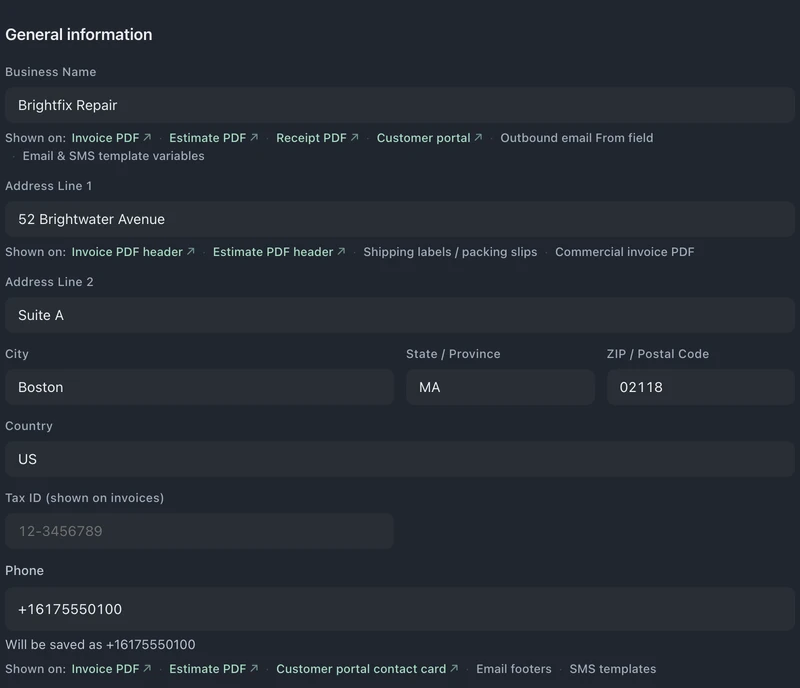
Business profile
Section titled “Business profile”Settings → Business → Profile holds your shop name, address, phone, and email. These flow into customer-facing surfaces, receipts, the portal, email templates, so set them before you send anything real.
Repair categories
Section titled “Repair categories”Your categories (screen repair, water damage, data recovery, restring, resize…) shape intake forms and reporting. The onboarding preset gives you a starting set for your trade; edit it to match what your bench actually does.
Statuses & automations
Section titled “Statuses & automations”The heart of the system. Each status can carry:
- An email or SMS template that sends when a ticket enters the status
- A portal timeline step so customers see progress
- Its position in your workflow
See Statuses & automations for the full treatment.
Message templates
Section titled “Message templates”Templates support variables (customer name, device, ticket number, portal link) and are edited in a visual editor. The starter templates are functional, personalize the voice so they sound like your shop, not like software.
Add staff accounts and assign roles in Settings → Team & Access → Members. Standard is for one person; Pro includes up to 8 people; Business has unlimited people. See Team & roles.
Email and texting
Section titled “Email and texting”- Email works from day one with no setup. To bring your shop inbox into BenchKey or send from your own address, see Email setup.
- Texting in the US needs carrier registration with your texting provider, which can take days. Start it early: Texting customers in the US (10DLC).
Languages
Section titled “Languages”Choose what your team sees and what customers receive in Settings → Languages. See Languages.
Connect your tools
Section titled “Connect your tools”When the basics feel right, wire up integrations: Stripe or Square for card payments, Quo, RingCentral or Twilio for texting and BenchKey Printing for labels (both Pro and Business), Affirm for financing.
A pacing note
Section titled “A pacing note”Don’t aim for perfect settings before your first ticket. Run a few real repairs, notice what you wish were different, then adjust. Settings tuned against real work beat settings imagined in advance.