

Franchise operations
The brand console is where a franchise brand, or a chain with company-owned stores, runs the network: how every store is doing, royalty statements and what franchisees owe, the standards every store uses, new franchisees and the public store locator.
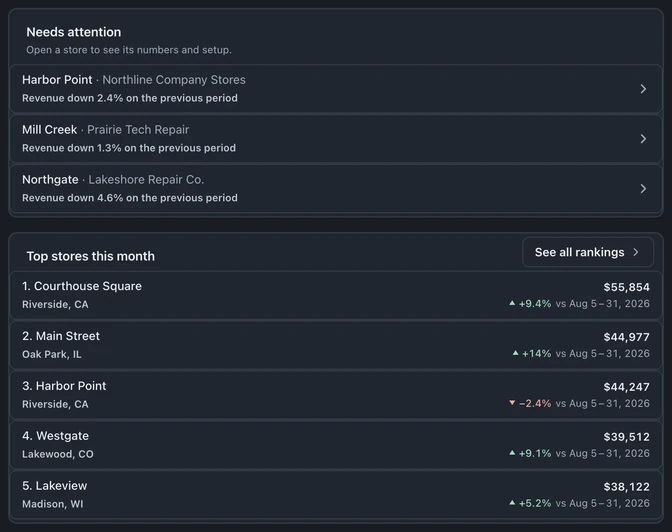
The screens on this page show a fictional brand, Northline Repair Group.
Several stores or a franchise network?
Section titled “Several stores or a franchise network?”- Several stores under one owner is Business: $149 a month for the first store and $79 for each extra store, and every store gets everything in Business. The stores share one workspace, customer base and team; see Multi-store setup.
- A franchise network: each franchisee runs its own BenchKey workspace on its own plan, and the brand console sits on top for corporate. The brand console is set up with BenchKey; there is no self-serve brand signup. Talk to us with your store count and how the stores are owned.
The two can mix. Company-owned stores sit in the brand next to franchisees, and a franchisee with more than one store runs them in one workspace on Business.
Find your way around
Section titled “Find your way around”The console has a home page and three sections:
- Overview: what needs you, and this month at a glance.
- Network: Performance (every store or franchisee ranked), Stores (the directory; open a store for its numbers) and Warranty lookup.
- Royalties: Statements, Collections (who still owes what, and how late) and Rules (how each statement is worked out).
- Brand: Standards (the statuses, templates, canned responses and terms every store uses), New franchisee and Store locator.
On a computer the sections are listed on the left, with your access level and Back to app at the bottom. On a phone or tablet, tap Sections at the top to open the same list. Opening a store shows its page with a Back to link to where you came from.
If you used the console before: Dashboard is now Performance, Governance is Standards, A/R aging is Collections, Warranty is Warranty lookup and Website is Store locator.
Who can do what
Section titled “Who can do what”Brand owners and admins can do everything. Only they can publish standards, add franchisees, change royalty rules, and generate, finalize and record payments on statements. Analysts and region managers have a view-only console.
Access and data boundaries
Section titled “Access and data boundaries”- The console reads brand-level numbers that each store sends in a nightly update. It doesn’t open a franchisee’s live workspace to show a page.
- Corporate access to a franchisee’s workspace is separate and consented. Overview and Stores show it as Granted, Not granted or Revoked (with the date).
- Warranty lookup shows the repair, never the customer.
Overview: what needs you
Section titled “Overview: what needs you”Overview opens first:
- This month so far: revenue and tickets against the same days last month, average turnaround (check-in to ready) and same-store revenue against last year.
- Needs attention: one line per store problem, in words, such as a BenchKey subscription payment that is past due, revoked corporate access, setup that isn’t finished, no sales yet this period, or revenue down on the previous period. Select a line to open the store.
- Royalties owed: what franchisees still owe on final statements, how much of it is more than 60 days late, and how many franchisees often pay late. Open collections goes to Collections.
- Top stores this month (See all rankings opens Performance) and Your network: stores open, franchisees, corporate access and your brand team.
Numbers arrive after the first nightly update. Until then the console says Collecting data instead of showing zeros, and if the update runs late it says Store numbers are behind.
Rank the network in Performance
Section titled “Rank the network in Performance”- Pick the period: Today, This week, This month or This quarter. The exact dates show next to the controls.
- Group by Stores or Franchisees.
- Pick All stores, Franchise stores or Company-owned stores.
- Select a column heading to sort by store, revenue, invoiced sales, tickets or turnaround.
Each row shows revenue, the change on the previous period, the change on last year (when the store was open a year ago), invoiced sales, tickets and turnaround. The top 100 show first; Show all lists the rest. When stores report in more than one currency, the totals say they are numeric sums, not one converted figure.
Stores and each store’s page
Section titled “Stores and each store’s page”Stores is the directory of every store in the brand. Search by store or city. Each row shows the store and its number, the franchisee, location, ownership (Franchise or Company-owned), its BenchKey plan status, corporate access and whether it’s open. Anything that needs a look is said in words, like Payment past due or Setup 3 of 6. A column no store has data for yet is hidden, with a one-line note.
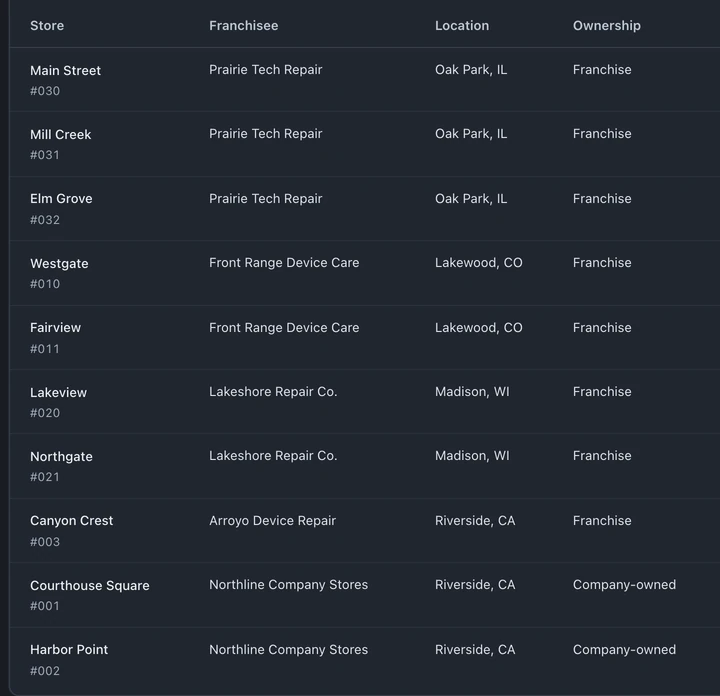
Select a store to open its page:
- Range: 30 days, 90 days or 1 year, with revenue, tickets and days with sales.
- Revenue trend: a chart of daily revenue, once the store has two days of sales.
- Setup: the store’s setup checklist, shown until it’s done. The store finishes these steps in its own workspace.
- Daily: each day’s numbers, newest first.
- Statement history: the franchisee’s latest royalty statements. The full history is on Statements.
Look up a warranty across stores
Section titled “Look up a warranty across stores”In Warranty lookup, enter an IMEI or serial number and select Look up. Each repair on record shows the store, the repair, the date it was repaired and Under warranty until a date, Warranty ended on a date, or No expiry set.
Only the repair is shown: customer details stay with the store. The server hashes the device number before searching across the brand. A new repair shows up after that store’s next nightly update.
Royalty statements
Section titled “Royalty statements”Statements are worked out from each store’s sales and your rules.
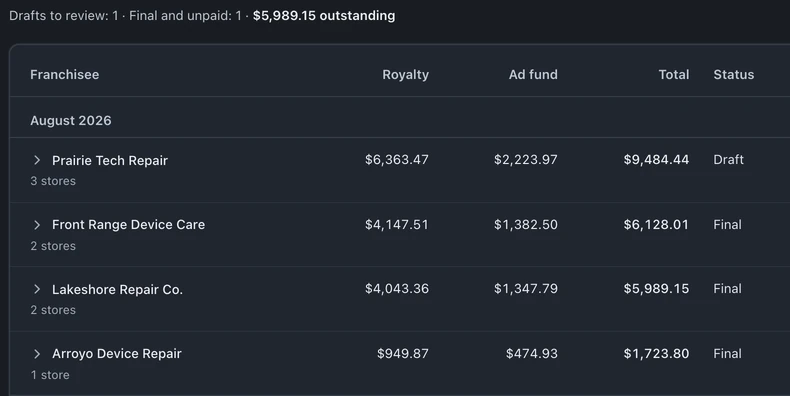
- Open Statements, pick the Period and select Generate drafts. Each franchisee gets one statement, with a line for each of its stores.
- Check the list: royalty, ad fund, total, status, due date and payment, grouped by month. The line above the list counts the drafts to review, the final statements still unpaid and the amount outstanding. Filter… narrows the list.
- Select a statement to see its lines: store, basis, basis total, royalty (Minimum applied when the minimum was used), ad fund, flat fee and line total.
- Select Mark final & notify franchisee. This freezes the amounts and emails the franchisee’s owner. If the email couldn’t be delivered, the statement says so; select Retry notification.
- When the franchisee pays, use Record a payment on the final statement: choose Unpaid, Partly paid, Paid or Waived, enter the amount received and the date, then select Record payment.
Export CSV downloads a statement’s lines. If the nightly update hasn’t confirmed every day of the period, the amounts say Not available yet and the statement can’t be finalized until they are confirmed.
BenchKey works out and tracks what franchisees owe and records their payments. It doesn’t take the money from franchisees automatically.
Collections: who owes what
Section titled “Collections: who owes what”Collections shows what each franchisee still owes on final statements, by how late it is: Not yet due, 1–30 days late, 31–60 days late, 61–90 days late and Over 90 days late, with the total unpaid. Across the top: the total unpaid, the amount more than 60 days past due, how many franchisees often pay late, and the finalized ad-fund pool. Often pays late marks the franchisees who usually pay after the due date. A column with nothing in it is hidden and named in a note.
Royalty rules
Section titled “Royalty rules”Open Rules to set how statements are worked out. Start with the brand default (Set the brand default), then use Add rule for a franchisee or store that pays differently. Each rule has:
- Applies to: the brand default, a whole franchisee or one store, picked from a list. A store rule beats its franchisee’s rule, which beats the brand default.
- Basis: invoiced sales net of refunds, cash collected, or labor only.
- Royalty %, and an optional Minimum per statement.
- Ad-fund %.
- Flat fee, charged every statement, month, quarter or year, with a name such as Technology fee.
- Effective from: the date the rule starts.
The top of the page reads the brand default as one sentence. Deleting a rule asks first.
Publish standards to every store
Section titled “Publish standards to every store”Standards keeps the same statuses, message templates, canned responses and terms in every store.
- Pick the kind: Templates, Statuses, Canned responses or Terms.
- Select New version, or Copy from a store: pick a franchisee, then Copy their setup. Copying needs that franchisee’s corporate access.
- Select Save version. Every version is kept in Version history. Select one to read it in words (statuses with their colour names, template names and subjects, response titles, the terms’ fields); Show the raw data shows the data behind it.
- Select Publish to all stores. The Apply report lists each store as Applied, Didn’t apply (with the reason) or Skipped. If some stores didn’t take it, the retry button under the report (for example Retry the 2 that didn’t apply) sends it again only to them.
Published statuses, templates and canned responses are locked in each store’s workspace and marked as managed by the brand. Terms are advisory and aren’t locked.
Add a new franchisee
Section titled “Add a new franchisee”Owners and admins open New franchisee (it’s also a button on Stores). It takes four steps, shown as “Step 1 of 4” and so on:
- Details: the franchisee’s name, the owner’s email, an optional store number (your own number, like 0413) and the ownership: Franchise, or Company store (left out of royalty statements by default).
- Business type: this sets up the new workspace’s categories, statuses and forms for that trade.
- Region: optional, and you can change it later.
- Review, then Send invite.
The last screen says exactly what happened: whether the invite was sent, whether the store is in the directory yet, and whether multi-store access is on. The owner gets an email to sign in. The new workspace shows Collecting data until its first nightly update.
The workspace starts on the usual 14-day Business trial, like a self-serve signup; after that the franchisee picks its own plan. Your franchise agreement with them is separate from BenchKey.
Publish the store locator
Section titled “Publish the store locator”Store locator puts your stores on your brand website:
- Public link: Copy it, or open it with Preview locator. Share it anywhere: social profiles, receipts, email signatures.
- Add this to your website: copy the embed snippet and paste it where the locator should appear.
- Prefer a plain link, or build your own? has a plain-link snippet and a JSON feed of your stores for developers (it works from other websites).
The locator lists the brand’s active stores with their hours. Book here opens that store’s own online booking page (online booking is part of Pro and Business).