Draft email campaigns for past repair customers

In an enabled workspace, select an audience from customer history and preview the email. Campaigns are in beta, with sending switched off during the beta.

The beta campaign studio filters customers by ticket count and time since last seen, updating the audience count and recipient list. The email preview then switches from desktop to phone.

See each campaign's status in one list

Each row shows the campaign name, subject, status and last update. Open a Draft or Ready campaign to continue working, or delete a draft you no longer need.

Prepare the whole campaign in one studio

Work through Who, What and When. Describe the email you want, review the draft, then add an offer or schedule if the campaign needs one.

Audience selection and email drafts

  1. 1

    Audience selection

    In an enabled workspace, combine conditions such as Members and Warranty expiring within… to build an audience. Every condition must match.

  2. 2

    Recipient list review

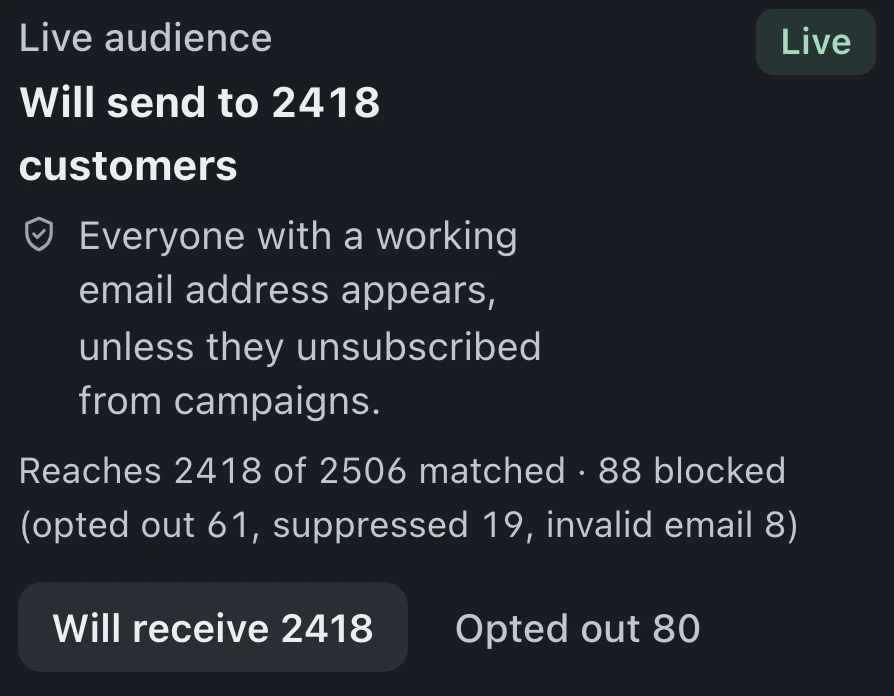
    Matching customers appear in eligible and opted-out lists. Compare the audience with the message you intend to write before continuing.

  3. 3

    Write and save the email

    Enter the subject and message and inspect the preview. The studio autosaves your draft.

Give promotions their own sending address

A separate address and domain keep promotions apart from receipts and ticket emails. Sending campaigns to customers stays switched off during the beta.

Choose customers who match every condition

Start with everyone or use Add condition for Members, Email captured in Leads and other filters. Each customer must match every condition; the live list shows who qualifies.

Confirm the recipient count before sending

Send now shows the live recipient count and asks for confirmation. During beta, sending is off, so confirming queues nothing and no campaign email goes out.

Message content and recipient preferences

Audience and eligibility previews support campaign preparation. A saved draft or ready status does not mean an email was delivered.

Visual and HTML editing

The message has a visual editor and an HTML view for working with the email markup.
Personalized customer and shop fields

Supported fields insert the customer's name and the shop name. Inspect their appearance in the editor's Example data view or the rendered preview.

Footer and unsubscribe link

A business footer and unsubscribe path accompany the email. Verify both in the preview alongside the subject and message.

Campaign opt-outs stay effective

An explicit campaign opt-out continues to exclude that recipient even when a later general consent record is added to the customer.

Campaign drafts and beta sending limits

Campaigns (beta) on Pro and Business need "Manage campaigns", given to owners and admins by default.

Compare plans
What campaign work is available during the beta?

Enabled workspaces can prepare an audience, write an email and save a draft. Sending remains off during the beta.

How does BenchKey decide which email addresses are eligible?

Eligibility rules exclude explicit campaign opt-outs, revoked consent, invalid addresses and active delivery suppressions. A missing marketing opt-in alone does not exclude an address under this feature's rules. Verify the listed recipients and their preferences when preparing the draft.

How do I build an audience of repeat repair customers?

Combine conditions such as Has at least… for ticket count, Members or Email captured in Leads. Customers must match every condition you add, and the preview shows matching records.

Does this include text message campaigns?

Text campaigns are not part of the email editor. Ticket texts and lead follow-ups have separate messaging workflows, provider connections, access and consent requirements.

The waitlist is open for repair shops

Leave your email for access updates. Your name and shop name are optional.

Watch the product tour 3:34 Follow a repair from check-in to pickup in BenchKey