Partial cash payments
Enter a cash portion by amount or percentage, then the cash handed over. BenchKey calculates change and saves what remains due on the same invoice for the next payment.
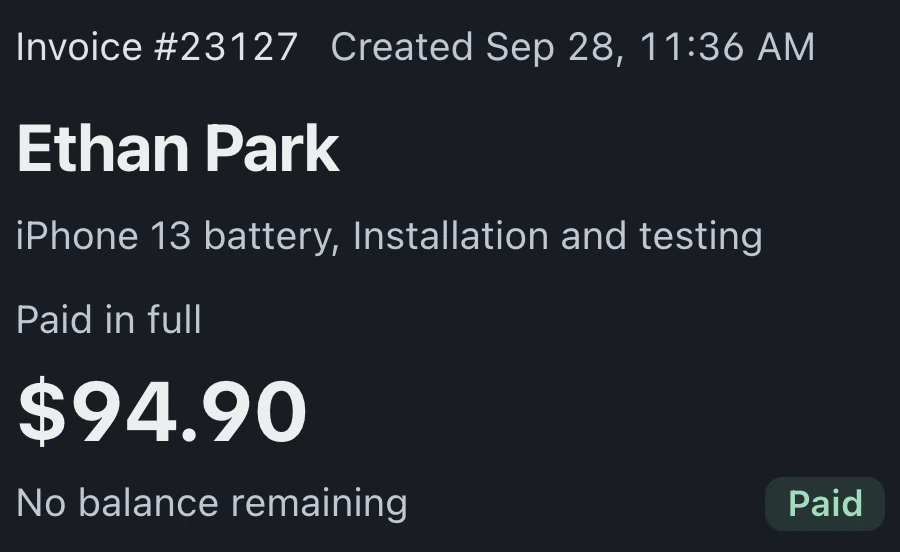
Checkout handles retail sales and finished repairs. Bring up the invoice and take payment, with the remaining balance in view. At close-out, count the drawer against the day's recorded cash.
Watch it work 0:51Included in StandardProBusiness
Checkout and register guideCash payments require an open drawer at the store handling the sale. Choose that store and open its register with a starting float.
Customer Lookup finds open invoices, which are also available in repair tickets. Before collecting the balance, review the invoice and apply eligible previous payments.
Accept cash, use a connected card processor and compatible reader, or send a payment link. After confirmation, verify the saved balance.
You can require the Store opening checklist before opening. BenchKey records who completed it and when. Stores with several drawers let staff choose which to open.
Payment balances carry forward in Checkout, and register activity remains available after the customer has left.
Enter a cash portion by amount or percentage, then the cash handed over. BenchKey calculates change and saves what remains due on the same invoice for the next payment.
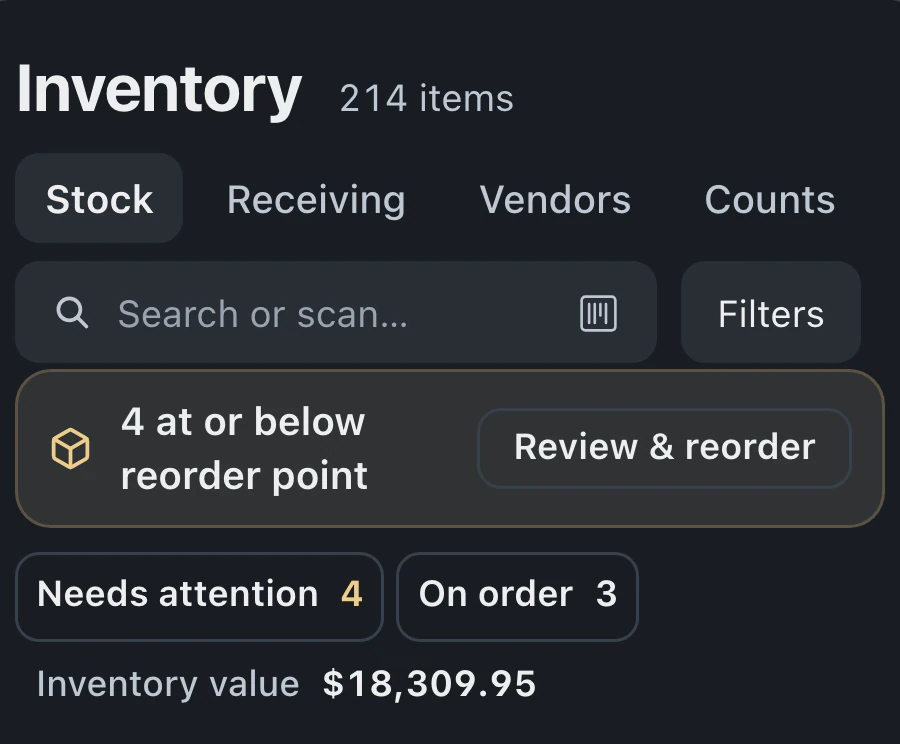
Quick sale handles counter items. Stock counts go down for items picked from Inventory when the sale is paid. Low-stock items are flagged at or below their reorder point.
During the shift, log cash added, payouts and adjustments. At close-out, compare expected cash with your count. Session history records the sales, payouts and any difference.
Recorded payments cannot be edited or deleted. Corrections are new entries: voids link to the payment they cancel; refunds appear on the invoice. Cash refunds reduce the register's expected cash.
Receipt options appear once the invoice is fully paid. Reprint or resend from the transaction or ticket, using your configured channels and customer contact details.
Counter staff find the invoice, record the payment and confirm the remaining balance. Register history shows sales, payouts and close-out figures for review.
Customers can pay at the counter or through a payment link when your provider setup supports it. Once the balance is paid, they can receive a receipt through your configured channels.
Standard, Pro and Business include checkout, drawer close-out and receipts.
Compare plans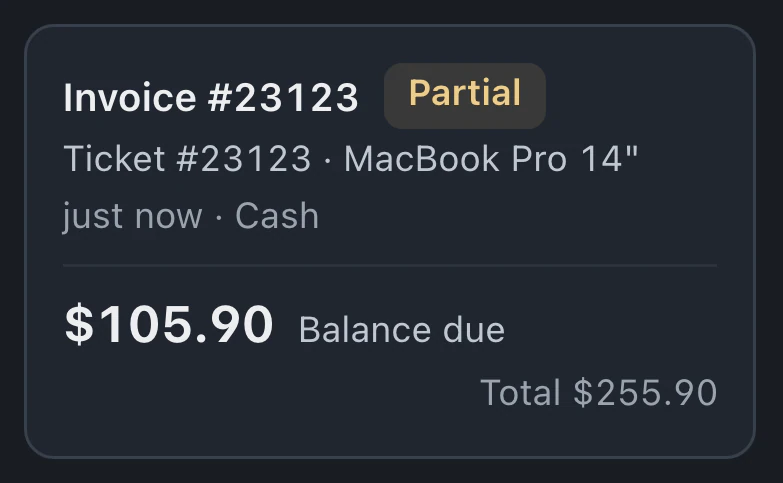
Quick Sale handles accessories and other counter items. Type an item name or scan its barcode, review the price and quantity, then take payment. Stock decreases automatically and the sale appears in your reports.
Connect your Stripe or Square account and assign a compatible reader for counter payments. Payment links need working online-payment setup and a way to reach the customer. Creating a link alone does not mark an invoice paid.
You can record part of the balance in cash and collect the rest later on the same invoice. The saved invoice shows what is still due and is only marked paid once the balance is collected.
Your own Stripe or Square account processes card payments at the provider's normal rates. BenchKey does not take a share of those payments or add a processing markup.
Affirm is available to shops in the US and Canada for qualifying invoices. Connect and test your Affirm account, then enable it to offer customers monthly payments through the invoice payment page.
Leave your email for access updates. Your name and shop name are optional.
 Watch the product tour 3:34 Follow a repair from check-in to pickup in BenchKey