

Team & roles
Esta página aún no está disponible en tu idioma.
Invite your team, choose their access and remove members in BenchKey. (1 min 18 s)
Adding staff
Section titled “Adding staff”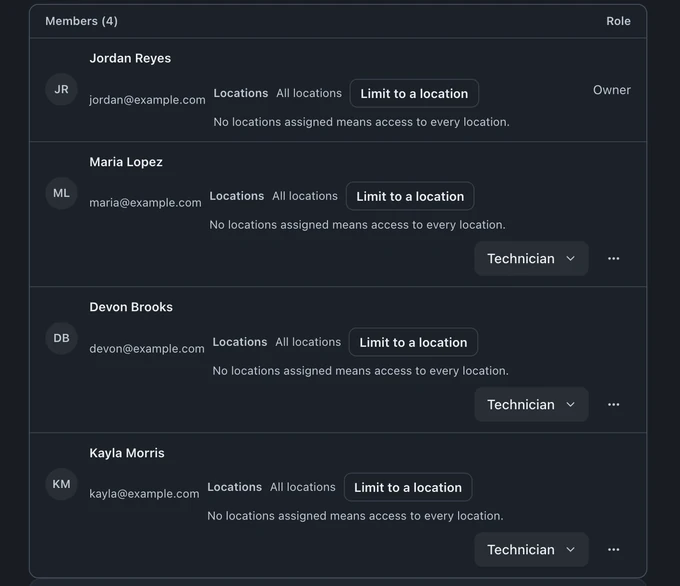
Give everyone their own login so recorded actions identify the person who took them.
- Open Settings → Team & Access → Members and choose Invite member.
- Enter their Email address, choose a role, and choose Send invite.
- They get an email and sign in with that same address. The invitation works for 7 days.
To send an invitation again, cancel one, or remove someone, see Signing in, two-step and lost access.
How many people your plan includes
Section titled “How many people your plan includes”- Standard: 1 person, the owner. Invited beta shops, and shops already paying for Standard before it changed to one person, keep 2.
- Pro: up to 8 people.
- Business: unlimited people.
On Standard and Pro, the Members page shows how many seats you use (for example, 3 of 8 seats). When the plan is full, invitations stop (nothing is removed); move to a bigger plan to add someone. See Change your plan.
Roles and permissions
Section titled “Roles and permissions”Open Settings → Team & Access → Members to invite staff and choose their role. The built-in roles are Owner, Admin, Technician, and Viewer. Only the owner can make someone an Admin or give a custom role, and there is one owner per shop. Owners can also manage custom roles under Roles & Permissions.
A role is the starting point for access. Custom capability grants and location assignments determine what a member can read or change. Review access to payments, refunds, reports, settings, and payroll before staff begin using the account; an admin label does not replace the owner’s controls.
For multi-store work, choose the stores each person can use and their role at each store. See Multi-store setup.
The time clock
Section titled “The time clock”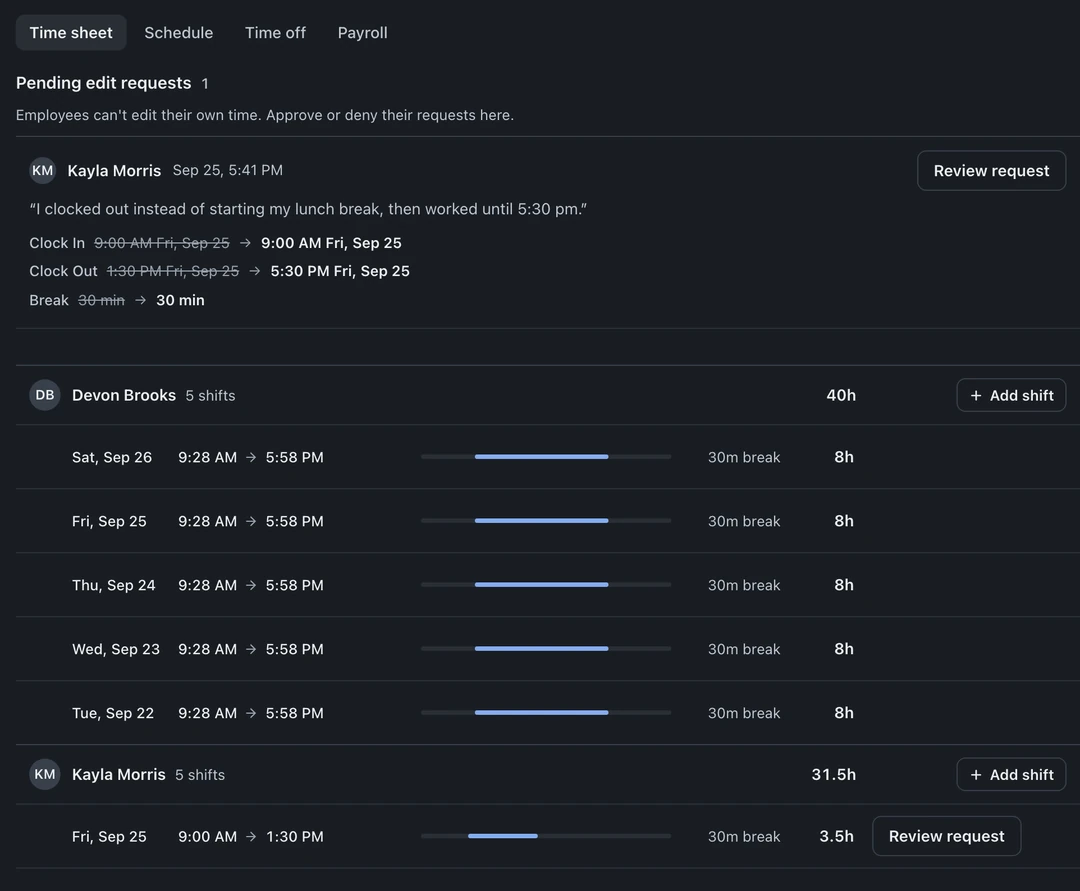
Staff clock in and out inside BenchKey, no separate app. The time clock and staff shift scheduling are part of Pro and Business:
- Shift history per employee: the owner sees everyone’s shifts. Anyone else, Admins included, needs View team time entries, which the owner turns on in Settings → Team & Access → Roles & Permissions.
- Open-shift correction: the owner, or anyone the owner gives Edit time entries, can close a shift someone forgot to end (everyone forgets eventually). Approving staff correction requests needs Approve time edit requests. Admins have neither permission until the owner turns them on in Roles & Permissions.
- Who’s in right now: the On the clock list shows other people only to the owner and anyone with View team time entries
Multi-location notes
Section titled “Multi-location notes”On multi-location accounts (Business), one login covers every store, but each person works only at the stores on their Locations line in Settings → Team & Access → Members. New people start with your first store. Add the other stores they work at, and any different role there, on their row or in Open locations matrix. The owner always has every store. Locations share the customer base while keeping their own queues, see the multi-location feature page for the model.