

Working leads day to day
Esta página aún no está disponible en tu idioma.
Leads land from the website widget, email, and calls. This page is the daily rhythm: answer fast, keep context, convert. Leads are part of Pro and Business.
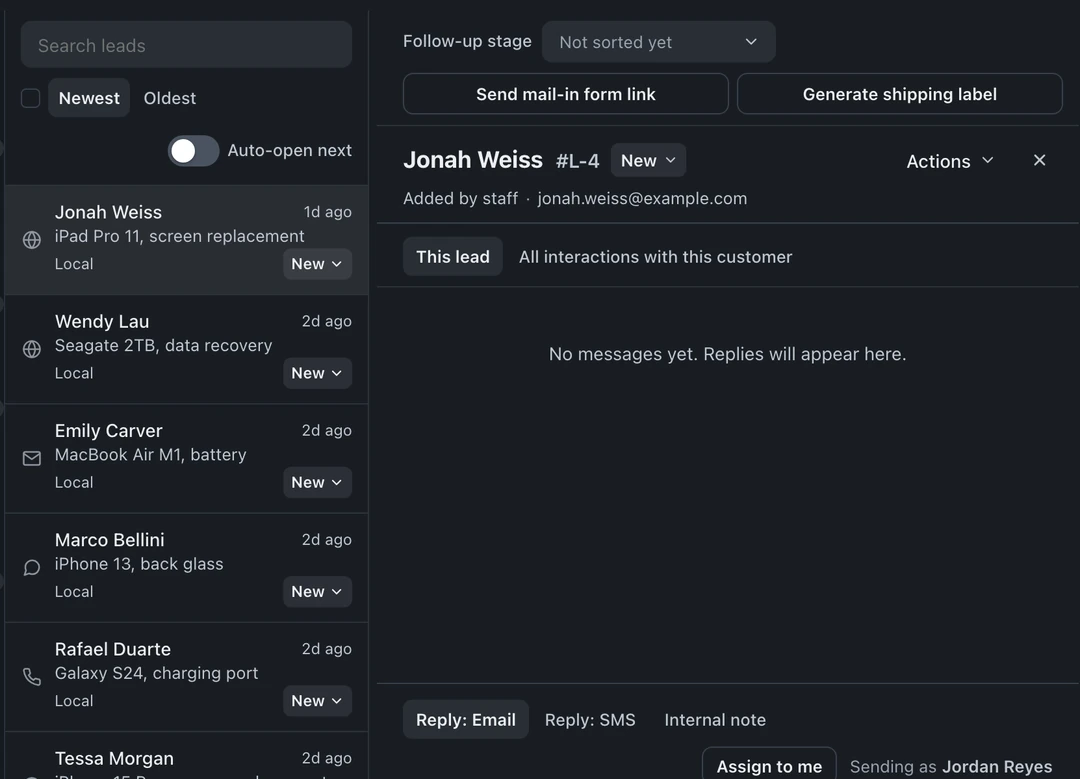
Lead inbox views
Section titled “Lead inbox views”The views column has All paths, Local, and Mail-in filters, plus All channels. Under Needs attention, choose:
- Inbox: leads waiting for staff to review or reply.
- Waiting on customer: you replied and are waiting for the customer’s response.
- Follow-ups due: leads with a follow-up message due.
- Unassigned: leads no one is handling yet.
- My leads: leads assigned to you.
The same column also offers All leads, Sent, Snoozed, Pipeline, and Closed views.
Answer a lead
Section titled “Answer a lead”Open the lead and choose Reply: Email or Reply: SMS, whichever the customer used. The whole exchange threads on the lead. Stuck on wording? The AI drafts the reply with your prices and tone, you edit and send. Set a response target your shop can meet and check reply times against it.
Keep the team on the same page
Section titled “Keep the team on the same page”- Choose Internal note beside the reply tabs to write a team-only note, never sent to the customer (“quoted 149, family sends us everything”).
- Returning customers are flagged automatically: if the lead’s phone or email matches an existing customer, you see their active tickets, open estimates, and history in the collapsible customer column at the far right. Open it with the » button before you reply.
- Attachments the customer sends (photos of the damage) stay on the lead.
Convert to a ticket
Section titled “Convert to a ticket”When they commit, choose Actions → Convert to ticket. In the dialog, select Walk-in or Mail-in, check the device category and Issue or service, then confirm. Contact info and the entire conversation carry over, the bench reads everything the customer already said, and the lead’s follow-up cadence stands down automatically.
Let the cadence chase the quiet ones
Section titled “Let the cadence chase the quiet ones”Follow-up sequences send on your configured schedule and pause when the lead replies. The reply setting determines whether they resume after staff answer. Booking or opting out stops the cadence, as does archiving, converting, or closing the lead.
Customize the pipeline
Section titled “Customize the pipeline”The lead statuses themselves are yours: Settings → Leads → Pipeline lets you rename and arrange the stages leads move through. Closing stages do real work, archiving, converting, or closing a lead automatically stands down any follow-up cadence on it, so nobody gets a nudge after they already said no.