

Set up your shop with the AI assistant
Esta página aún no está disponible en tu idioma.
Supported setup areas in BenchKey can be changed two ways: click through Settings, or ask the AI assistant in plain English. The assistant makes the requested change, lists exactly what it did, and leaves the affected setting available for you to verify or adjust.
If you remember one thing from this page: you do not need to know where a setting lives. Describe what you want, the assistant finds it.
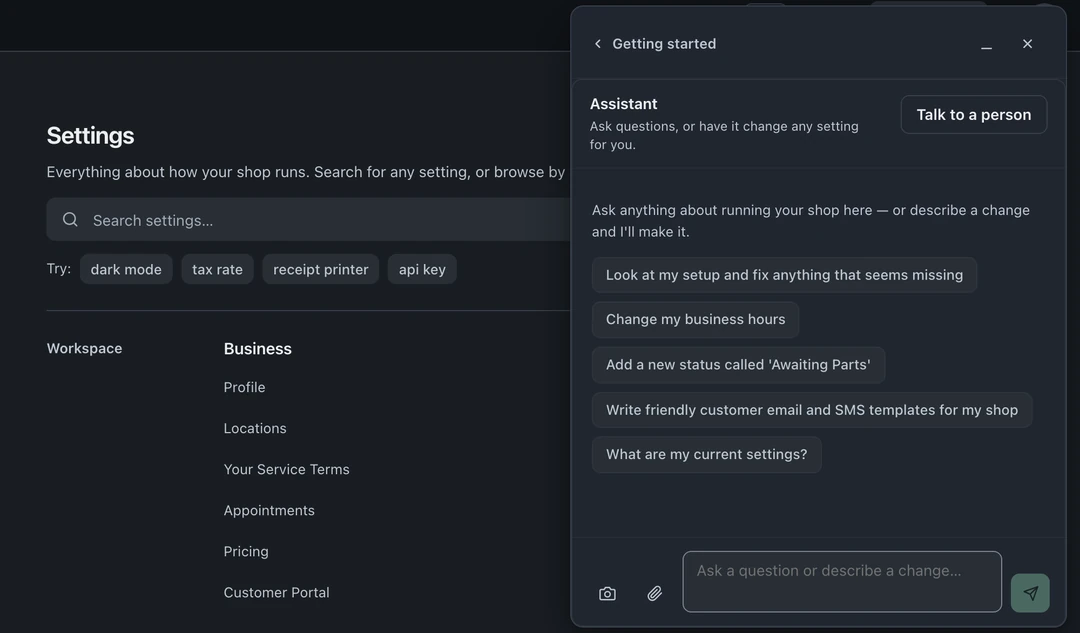
Open the assistant
Section titled “Open the assistant”The round button in the bottom-right corner opens Help by default. Ask for a settings change there, then tap Make this change to open the Assistant with your request. You can also open the Assistant directly:
- Choose Getting started in the left icon rail and select Open under Ask the assistant. On Pro and Business, you can also open Settings → Communications → AI & Automation → Assistant.
- Type what you want in the message box, the same way you would text a coworker.
- After the configured provider completes the request, review the assistant’s reply and open the affected setting to verify or adjust it.
What to ask for
Section titled “What to ask for”Real examples that work, copy them and adjust:
- “Text customers when their repair is ready for pickup”
- “Send customers a review request a few hours after pickup”
- “Move Waiting for Parts between In Diagnosis and In Progress”
- “Rewrite my estimate-ready email so it sounds friendlier”
- “Set my business hours to 10 to 6, closed Sundays”
- “Add a question to my check-in form asking for the device passcode”
- “Turn off the deposit requirement on mail-in orders”
Texts from your shop’s number, review requests and your own automations are part of Pro and Business; mail-in is part of Business.
The assistant can configure statuses and their automations, email and SMS templates, review requests, lead and widget settings, business profile and hours, intake forms, and more.
Ask how things work
Section titled “Ask how things work”The assistant also answers questions, about BenchKey and about your setup:
- “What does the deposit toggle on invoices do?”
- “Why didn’t ticket 23004 send a ready-for-pickup text?”
- “Where do I change the logo on my invoices?”
When the answer lives on a settings page, the assistant can jump you straight to it.
Attach a screenshot
Section titled “Attach a screenshot”Stuck on something visual? Attach a screenshot in the assistant and ask about it. “What is this badge on my queue?” works.
You stay in charge
Section titled “You stay in charge”- Every change is listed in the reply and counted in the change badge.
- Nothing is hidden: open the setting it mentions and you will see the change.
- Open any setting it changed to review or adjust the result directly.
- Check the reply and affected settings for mistakes or missing changes before relying on the result.
BenchKey supports Anthropic, OpenAI, and Google Gemini. Check the AI settings for your workspace: when included platform AI is available, a personal provider key is optional; otherwise an administrator must connect a supported key before requests can run. The request context goes to the selected provider to produce the response.
During onboarding
Section titled “During onboarding”The same assistant runs your first-time setup. Tell it what kind of shop you run and it builds your starting configuration: statuses, intake forms, templates, and categories that match your trade. See Quickstart.
Where the AI settings live
Section titled “Where the AI settings live”Settings → Communications → AI & Automation holds the AI switches: turn assistant features on or off and control the automation behaviors. The setup assistant is on every plan (on Standard, free for the first 30 days, then with a small monthly limit). Ticket and lead drafting, summaries and other AI tools require Pro or above, and Business includes more AI. The AI & Automation settings area also requires Pro. If a request cannot run, check provider availability and the specific feature’s plan access.