

Campaigns & segments
Esta página aún no está disponible en tu idioma.
Campaigns is in beta, requires Pro or above, and must be enabled for your workspace. Check the sending controls and current beta terms for availability before planning a send.
Use customer history to choose an audience, then draft and preview the email before scheduling or sending it.
Build a segment
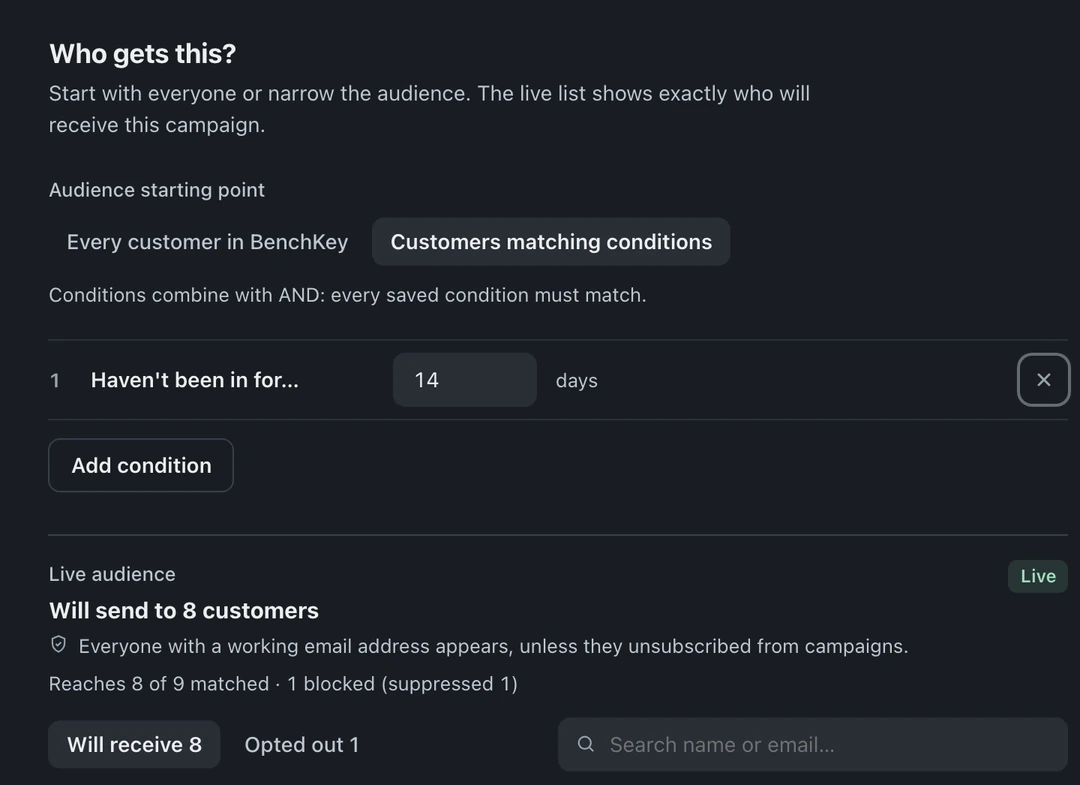
Section titled “Build a segment”Open Campaigns in the left icon rail (marked beta), choose New campaign, and enter a name. The studio opens with Who, What, and When steps. Start with Who. The audience is a filter over your real customer base:
- Last service: e.g. “hasn’t been in for 90+ days”
- Device type: e.g. owns a MacBook, has a console
- Total paid: e.g. spent over $500 with you
- Ticket count: e.g. two or more repairs
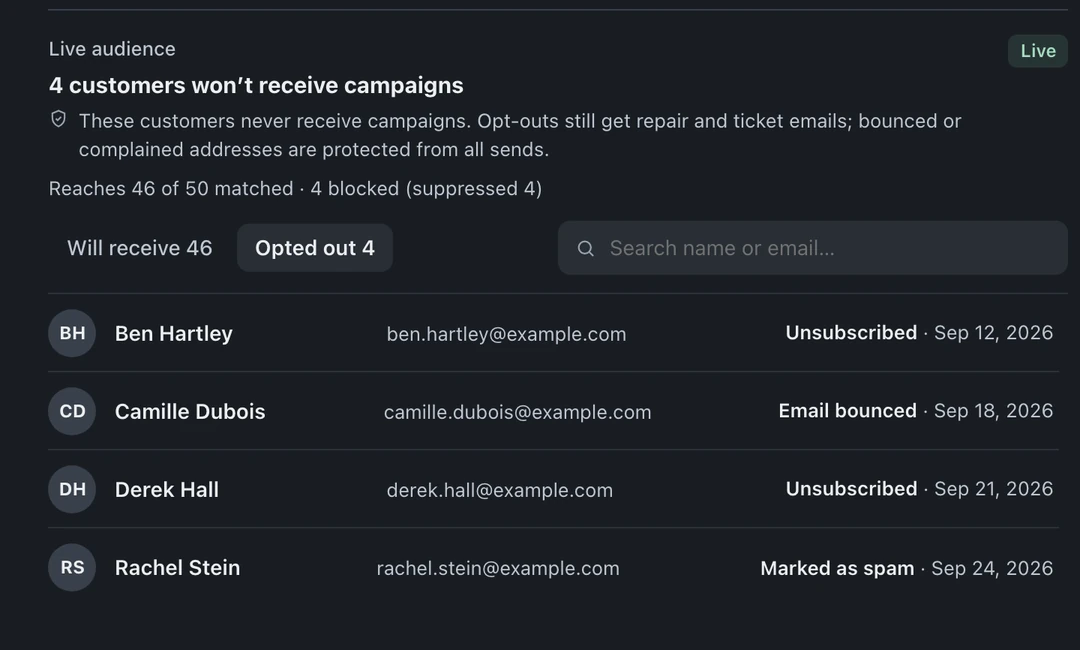
The audience preview shows the matching customers and those eligible under the campaign email rules. Inspect both the recipient and opted-out lists before continuing.
Recipient eligibility
Section titled “Recipient eligibility”Campaign email uses an opt-out policy. A missing marketing opt-in does not by itself exclude an address. Explicit campaign opt-outs, consent revocations, invalid addresses, and active delivery suppressions block eligibility.
A campaign opt-out remains effective even if a later general consent event is recorded. SMS and other messaging workflows have separate consent rules. Review your audience and customer preferences before sending; the preview is a sending-eligibility view, not a promise that every message will be delivered.
Campaign email includes an unsubscribe path and business footer. Check both in the preview.
Draft the email
Section titled “Draft the email”Write the subject and body once, with {{customer_name}} and {{shop_name}} for personalization. Drafts stay editable until you mark them ready.
Review availability and outcome
Section titled “Review availability and outcome”The example above is a saved Draft. It has not been scheduled or sent. Review the audience, subject, content, and current sending availability before proceeding to When.
A draft or ready state does not prove delivery. If sending is available for your workspace, check the resulting campaign status and delivery results. SMS campaigns are separate from this email feature; see ticket messaging and lead follow-ups.