

Taxes, currency & payment settings
Esta página aún no está disponible en tu idioma.
Open Settings → Billing & Payments → Payments for tax defaults, document settings, and provider connections. Review a sample estimate or invoice after changing a default.
Find where to set your shop details, logo, opening hours, tax and currency. (1 min 18 s)
Sales tax
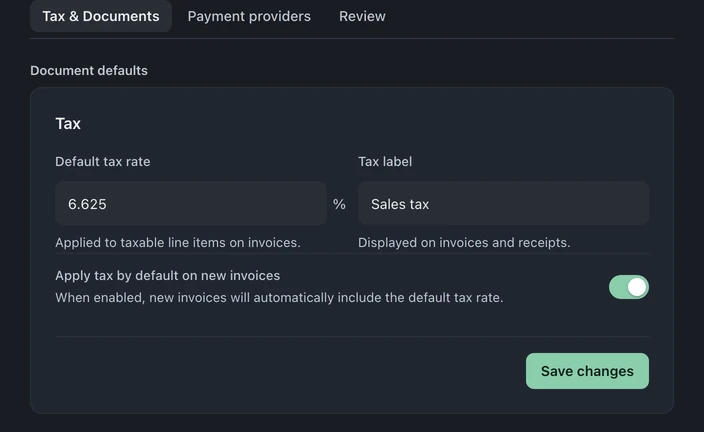
Section titled “Sales tax”- Default tax rate: your sales tax percentage, applied to taxable line items on invoices and quick sales. Use the tax switch to turn tax on or off for the whole invoice, estimate or quick sale. It shows your tax label and rate, such as Sales Tax (6.250%). There is no per-line tax switch; only shops in VAT, GST or IVA countries can turn on Prices include tax and then set a line’s Tax treatment, such as Exempt or Zero-rated.
- Tax label: what the tax line is called on customer documents (“Sales Tax”, “VAT”, “HST”, whatever your jurisdiction calls it).
- Apply tax by default on new invoices sets the starting tax choice on new invoices and estimates, unless a team member has set Apply tax by default on invoices & estimates in My Profile, which takes precedence for them. Review each invoice’s tax treatment before issuing it.
Australian example, with GST included: for a GST-registered shop charging 10% GST, an A$110 repair is A$100 before tax plus A$10 GST. Enter your ABN in Settings → Business → Profile so it appears on invoices, estimates and receipts. In Tax Configuration on the payment settings page, confirm the GST tax label, 10% default rate and whether tax applies by default. On each new invoice, estimate or quick sale with inclusive prices, turn on Prices include tax and check that the total remains A$110.
For reference quotes, turn on Calculator quotes include tax in Settings → Workflow → Price Calculator. This separate calculator setting does not change invoice or checkout defaults, or reinterpret prices already saved on documents.
On the Tax & Documents tab, choose Save changes after editing the tax defaults. Integrations that use multi-component tax classes can refer to the tax classes API (Business plan).
The tax report (Pro and Business) summarizes recorded tax for the selected period; reconcile it with your books. On any plan, Reports → Overview shows a Tax Summary for the period.
Currency
Section titled “Currency”Review the currency summary in Settings → Business → Profile. It is derived from the business locale rather than typed into an invoice. Locale settings live under Settings → System → General. Confirm the intended currency before importing monetary records.
Accepted payment methods
Section titled “Accepted payment methods”On the Tax & Documents tab, use Payment methods to turn on Card (terminal reader), Cash or Send payment link, then choose Save changes. Connect Square or Stripe on the Payment providers tab and set up a reader before relying on Card (terminal reader). Turning on a method does not connect a provider.
Receipt footer
Section titled “Receipt footer”Edit Receipt footer under Settings → Business → Terms → Receipts and drop-off slips, then choose Save. Use it for a return policy, warranty reminder, thank-you note, or the legal sentence your accountant insists on. It appears on the customer’s online invoice page and on thermal receipts and drop-off slips while Footer is Automatic (the default). Custom uses Custom footer text instead; None prints no footer. Full-page PDF receipts and invoice PDFs do not include it. Check it by printing a thermal receipt or drop-off slip, or opening the customer invoice page.
Estimate validity
Section titled “Estimate validity”How many days an estimate stays valid before it expires. The expiration prints on the estimate the customer sees, which politely pressures the fence-sitters and protects you from someone approving a three-month-old parts price.
Upfront service fee
Section titled “Upfront service fee”Diagnostic-fee settings live under Settings → Business → Pricing, separately from this payment page. Review the fee label, amount, and the documents where it applies before using it with customers.