

Inventory & parts
Este conteúdo não está disponível em sua língua ainda.
Inventory in BenchKey is built for a repair counter: parts go on tickets and retail items sell at checkout. Ticket parts follow the invoice and inventory workflow; completed retail sales reduce stock automatically.
Before you start
Section titled “Before you start”Choose the correct store and confirm that inventory setup is ready. If the app reports that inventory is unavailable or setup is pending, resolve that state before entering opening stock. Have each item’s SKU, cost, sale price, and actual on-hand count ready.
Add items
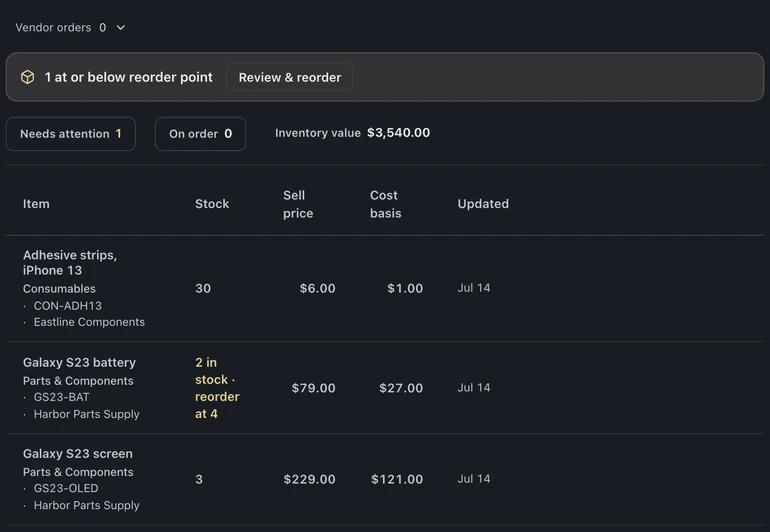
Section titled “Add items”Open Inventory in the left icon rail, choose Stock, then + Add item with a name, SKU, cost, and price. Cost is what you paid; price is what the customer pays, the spread feeds the margins report. Scan a barcode to attach it, future scans find the item instantly.
Parts on tickets
Section titled “Parts on tickets”From a ticket’s Device panel, Add parts lets you attach catalog parts to the job and carry their prices onto the invoice. Review the quantity and price before billing. Stock movement follows the invoice and inventory workflow; attaching a part alone is not proof that the sale has completed.
Retail sales
Section titled “Retail sales”Items sold through Quick sale decrement stock automatically. One catalog serves the bench and the counter.
Low-stock alerts
Section titled “Low-stock alerts”Set a threshold per item and BenchKey flags anything at or below it. The inventory valuation report shows what is on the shelf in dollars and what needs reordering.
Per-location stock
Section titled “Per-location stock”On multi-location accounts (Business), the same item tracks separate on-hand counts per store, so “the Westside store has two” is a glance, not a phone call.
Counting tips from a working shop
Section titled “Counting tips from a working shop”- Receive parts into inventory the day they arrive, future-you forgets.
- Let tickets pull parts instead of typing line items by hand, that is what keeps counts true.
- Watch the low-stock flags weekly; the report is cheaper than an emergency supplier order.