

On-site visits: visit page, Today and Team
Este conteúdo não está disponível em sua língua ainda.
When a repair happens at the customer’s address, BenchKey gives the customer one page to follow the visit, gives each technician their day on their phone, and gives the office one view of every technician. There is no live map: the customer sees an arrival time, never where the technician is.
- On-site visits are on Pro and Business: Today and the route, On my way messages with the arrival time, the customer’s visit page with messages and files, and the office Team board.
- Online booking, including on-site requests, is on Pro and Business too.
- On Standard, your team books customers in on the appointment calendar.
Set it up
Section titled “Set it up”Open Settings → Business → Appointments.
- In the On-site visits card, switch on on-site visits and choose the usual visit length, the arrival window you give customers, and the drive time to keep free before and after each visit.
- Under Arrival times and the customer’s visit page:
- Arrival times from the technician’s location is on by default. When a technician taps On my way, BenchKey reads their location once to work out the arrival time. Switch it off and technicians pick about 10, 20, 30 or 45 minutes instead; BenchKey never asks for a location.
- Before we arrive is a note of up to 300 characters on the visit page, for example “Please clear a small table near an outlet and have your passcode ready.” Leave it empty to use your booking page’s “Before you come” note.
- The card also shows whether the maps service is available.
- To take visits online, open On-site visits from the booking page and switch on Let customers book on-site visits online. Customers then choose between coming in and a visit from your technician. By default each request comes to you to approve; if you list the ZIP or postal codes you serve, visits there can confirm automatically.
The customer’s visit page
Section titled “The customer’s visit page”Every on-site visit has one link. It is in the booking confirmation, the reminders, and the “on my way” and “running late” messages, so the customer never has to look for a new one. Visits booked by your team get a short link; visits booked online use the booking’s own “change or cancel” link, which opens the visit page.
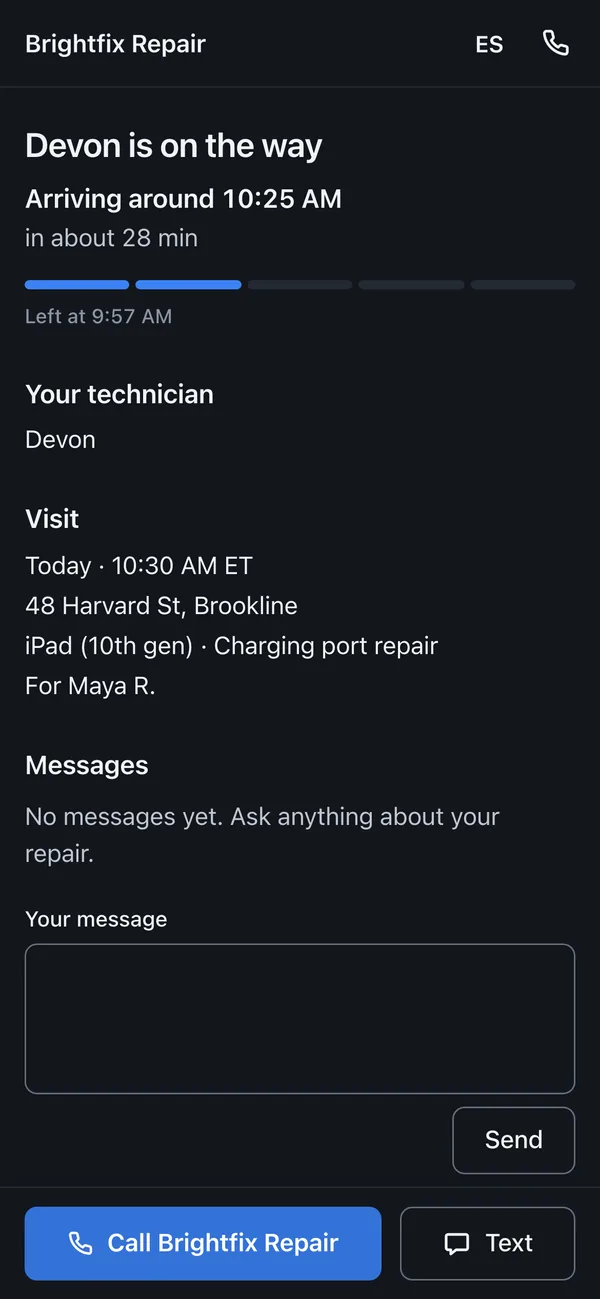
Example repair records shown with fictional data.
The page shows your logo and name, the technician’s first name, the date and arrival window, and where the visit is in five steps: Booked, On the way, Arrived, Repair, Done.
| When | What the customer sees |
|---|---|
| Booked | The day and the arrival window, Add to calendar, how they’ll hear when the technician leaves, and your “Before we arrive” note. |
| On the way | ”Devon is on the way”, the arrival time and the minutes left, with Call and Text for your shop. |
| Running late | The new arrival time, with the old one next to it. |
| Arrived, Repair | The time the technician arrived or started. |
| Done | ”All done”, the receipt or the invoice to pay, and the warranty (“90-day limited warranty, covered until …”). |
| Missed, cancelled | What happened, with Book another visit or Call. |
Your repair appears on the page as soon as there is something to show: an estimate to review and approve with a signature, an invoice with Pay now when you take cards online (Stripe or Square), then View receipt, and the warranty line.
The page also has Messages, where the customer writes to your shop and sees your replies, and Photos & files, with what you shared on the ticket and Add photos or files for their own. Messages land in the ticket like any portal message.
The page is in English or Spanish (the customer’s language when you booked, with a switch at the top), follows the phone’s light or dark setting and updates itself, every 15 seconds while the technician is on the way.
Changing the visit. Customers who booked online can Reschedule or Cancel from the page, within your booking page’s rules. Visits your team booked show Call and Text instead. Once the technician is on the way, changes are by phone.
What the page never shows: the customer’s full name, phone or email, your access notes, other visits, or where the technician is.
Links stop working 30 days after the visit, or later while an estimate or invoice still waits on the customer. An old link says the link has expired and offers to book a new visit.
Today, for technicians
Section titled “Today, for technicians”Open Calendar → My visits. On a phone, a technician who doesn’t dispatch lands in Today automatically.
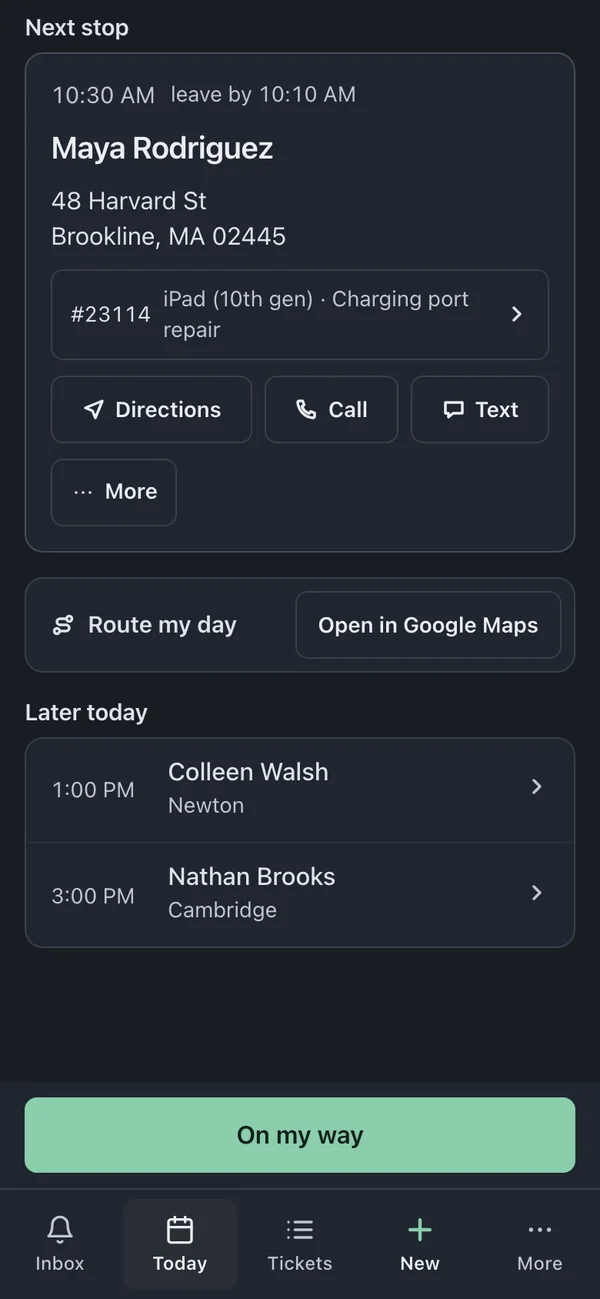
- Next stop is on top, with the address, the ticket, Directions, Call and Text. Later today lists the rest in time order, and Done keeps the finished ones.
- The big button at the bottom is always the next step: On my way, then Arrived, Start repair and Finish visit.
- Directions opens Apple Maps (on iPhone, iPad and Mac), Google Maps or Waze, and remembers the choice. Route my day opens Google Maps with every remaining stop in order; on iPhone, long days are split into parts.
On my way. The first time on a phone, BenchKey says: “We use your location once to tell the customer when you’ll arrive. We don’t track you.” Tap Use my location and BenchKey reads the location once, asks the maps service for the drive time and suggests it, for example “12 min · Maps”. Or tap Pick a time instead, or pick 10, 20, 30 or 45 minutes. The sheet shows the exact message the customer gets and whether it goes by text or email. Tap Send · On my way.
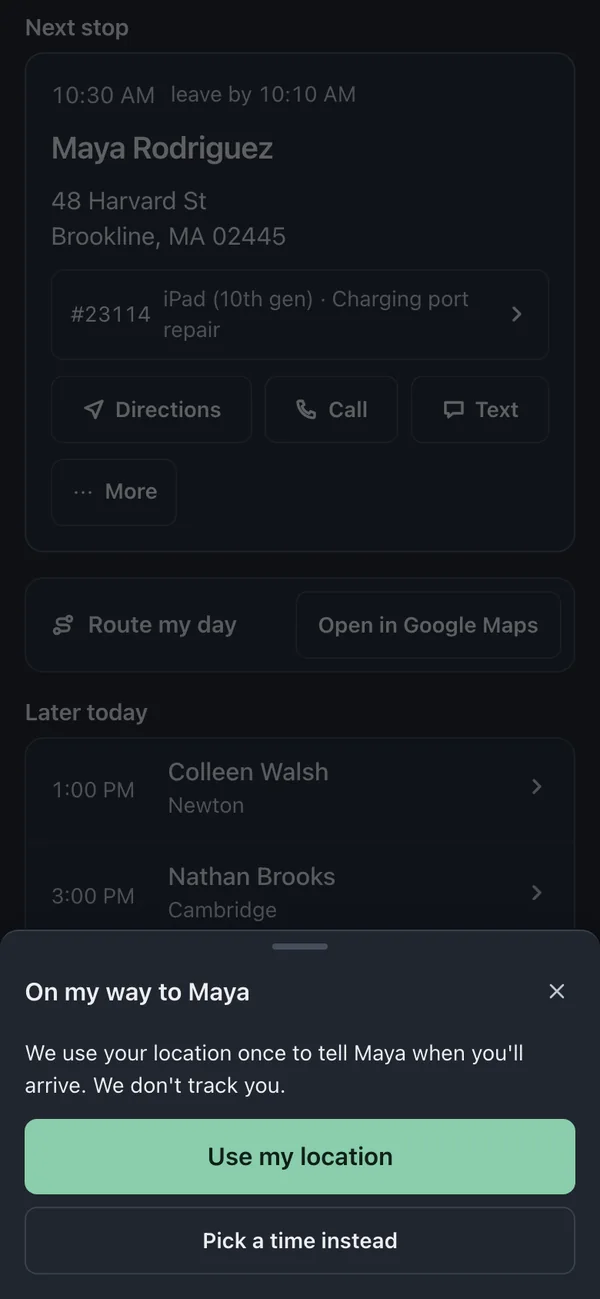
If the phone’s location is off, or the maps service can’t answer, the sheet says so and the minute buttons still work.
Running late? Tap +5, +10, +15 or +30 min. The customer gets one message with the new time. Update arrival time reads the location again; the customer is only messaged when the new time is at least 10 minutes later than the one in their last message.
On site, the visit’s tools are Terms & signature, Add photo, Add note and Payment (technicians who don’t handle money get Ask the office to invoice). Finish visit asks how it went (Fixed, Needs parts, Needs follow-up or Other) and saves an optional note on the ticket. Finishing closes the visit only; the invoice is marked paid when the payment is recorded.
More has Copy visit link, Customer not home, Swap with next, Reschedule (for dispatchers) and Ask the office to move it.
Team, for the office
Section titled “Team, for the office”Open Calendar → Team (owners, admins and anyone who dispatches). Each technician gets one card: where they are now and their arrival estimate, how many visits are done, and every visit of the day with its status. Flags show what needs attention: Running late, ETA passed, Behind (a visit has not started after its scheduled start), At risk (an earlier visit is expected to run past the time needed to leave for the next one), Needs approval and Needs a technician. The store filter and the day arrows work here too.
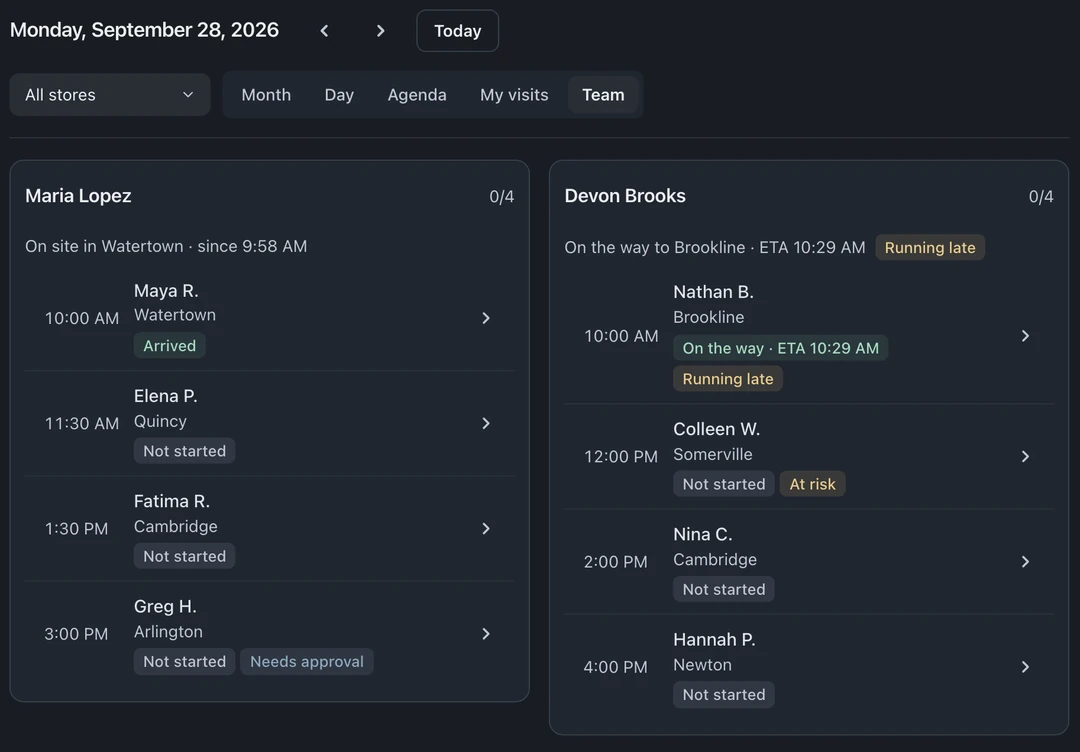
Tap a visit to open it. Its Customer view can Copy link, Open the customer’s page as they see it, or Reissue link: the old link stops working and the next message carries the new one.
Privacy
Section titled “Privacy”- The location read happens only when the technician taps. It is used for one drive-time request and then thrown away: BenchKey doesn’t store or log it, and never tracks technicians in the background.
- BenchKey keeps the arrival time the customer was told, whether it came from the maps service or the technician, and when it was set.
- Customer data requests cover visits: an export includes the visit, and erasing a customer deletes their visits and visit links.
Troubleshooting
Section titled “Troubleshooting”- “Location is off for BenchKey.” On iPhone: Settings → Privacy & Security → Location Services → Safari Websites → While Using. On Android: tap the lock icon in the address bar → Permissions → Location → Allow. The minute buttons always work without it.
- “Couldn’t get a time from maps.” The maps service didn’t answer in time. Pick the minutes; nothing else changes.
- A customer forwarded their link to the wrong person. Open the visit, then Customer view → Reissue link.
Related guides
Section titled “Related guides”- On-site visits: switching them on, booking a visit from the calendar and the drive time around it
- Appointments and online booking
- Customer portal