

Time clock, payroll hours & commissions
Este conteúdo não está disponível em sua língua ainda.
The time clock, payroll export, commissions and bonuses, and staff shift scheduling are part of Pro and Business.
Open Clock in the left icon rail, or choose Time clock from the account menu in the top bar.
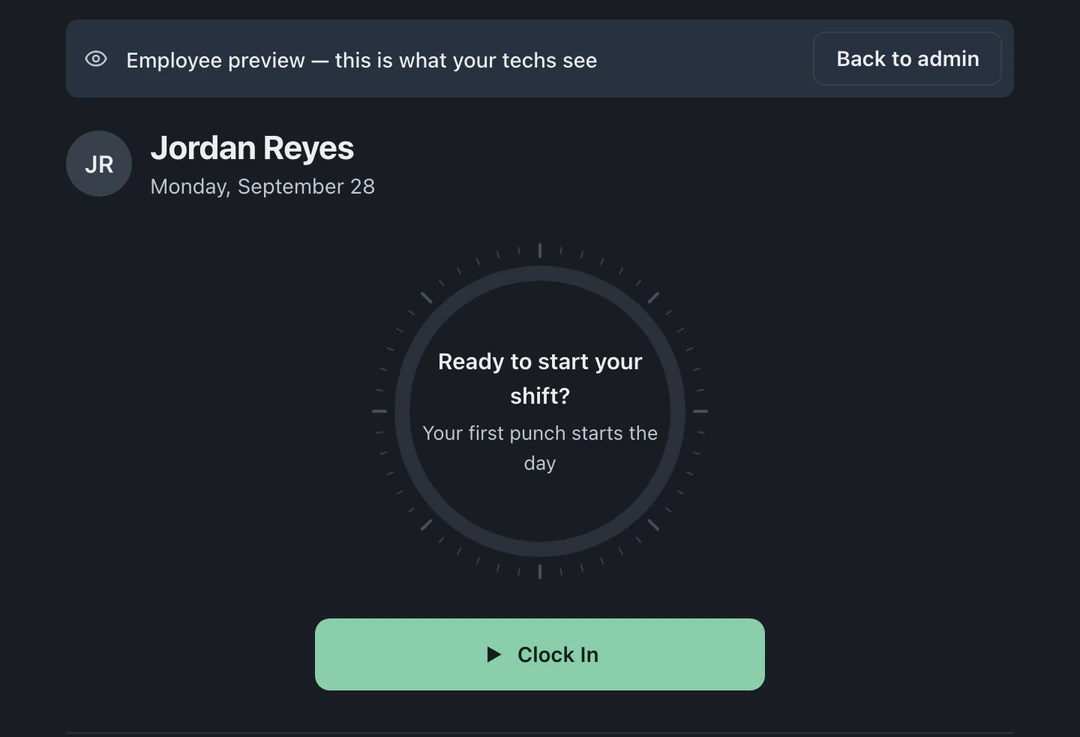
Clock in and out
Section titled “Clock in and out”- Choose Clock in in the top bar. While you are clocked in, it shows your running time; open its menu and choose Clock out at the end of the shift. The same menu offers Time clock.
- Admins can open Clock and check On the clock to see who is working and when they started.
Fix a forgotten punch
Section titled “Fix a forgotten punch”Someone forgot to clock out and now has a 38-hour Tuesday:
- Admins can open Clock → Time sheet, find the person’s shift row, and correct its clock-out time.
- Staff can submit an edit request for a wrong punch. Under Pending edit requests, admins choose Review request to review and approve or deny it. Requests are tracked, so corrections leave a trail.
Payroll hours
Section titled “Payroll hours”Set each employee’s pay rate in Clock → Payroll and the payroll total computes itself from shifts, per person, for whatever period you pick. Friday payroll becomes reading a number, not reconstructing a week. The same numbers live in Reports.
Commissions and My Earnings
Section titled “Commissions and My Earnings”If you pay techs a cut of the work:
- Set commission rates per tech in Settings → Team & Access → Compensation.
- Every invoice’s “who did this work?” selector credits the sale, in settings this is called Revenue Credit, and it drives both commission math and the per-tech numbers in reports.
- Techs get their own My Earnings view to inspect what they earned, on which jobs, and at what rate.
Roles, who sees what
Section titled “Roles, who sees what”Access depends on the member’s role, custom permissions, and location assignments. Owners can review those permissions before giving staff access to payroll, reports, or other people’s earnings. Role details live in Team & roles.