

Shipping & tracking
Este conteúdo não está disponível em sua língua ainda.
Shipping requires Business and a working shipping-provider connection. Have the destination address, parcel dimensions, weight, and ship-from address ready.
Shipping keeps labels and carrier events attached to the repair they belong to. Connect a shipping account in Settings → Integrations & Shipping → Shipping, then create labels from a ticket or the mail-in flow.
Create a label
Section titled “Create a label”- Open a ticket and choose ⋮ Ticket actions → Shipping Label, or Files and shipping → Quick Actions → Shipping Label. You can also choose Create label on the Shipping page and select a ticket.
- In Shipping Label, select Domestic (United States) or International, choose the shipping Account, and confirm the Ship to address and Package details.
- Choose Get Rates, select a Rate, then choose Review label. Check the address, package, shipping account, service, and price on Review shipping label. Use Back to edit if anything is wrong.
- Choose Generate Label, which shows the price beside it. Label Created offers Open Label and Track Package, along with tracking details and a review-request option. To email the label, open the shipment’s row on the Shipping page and choose Email when available.
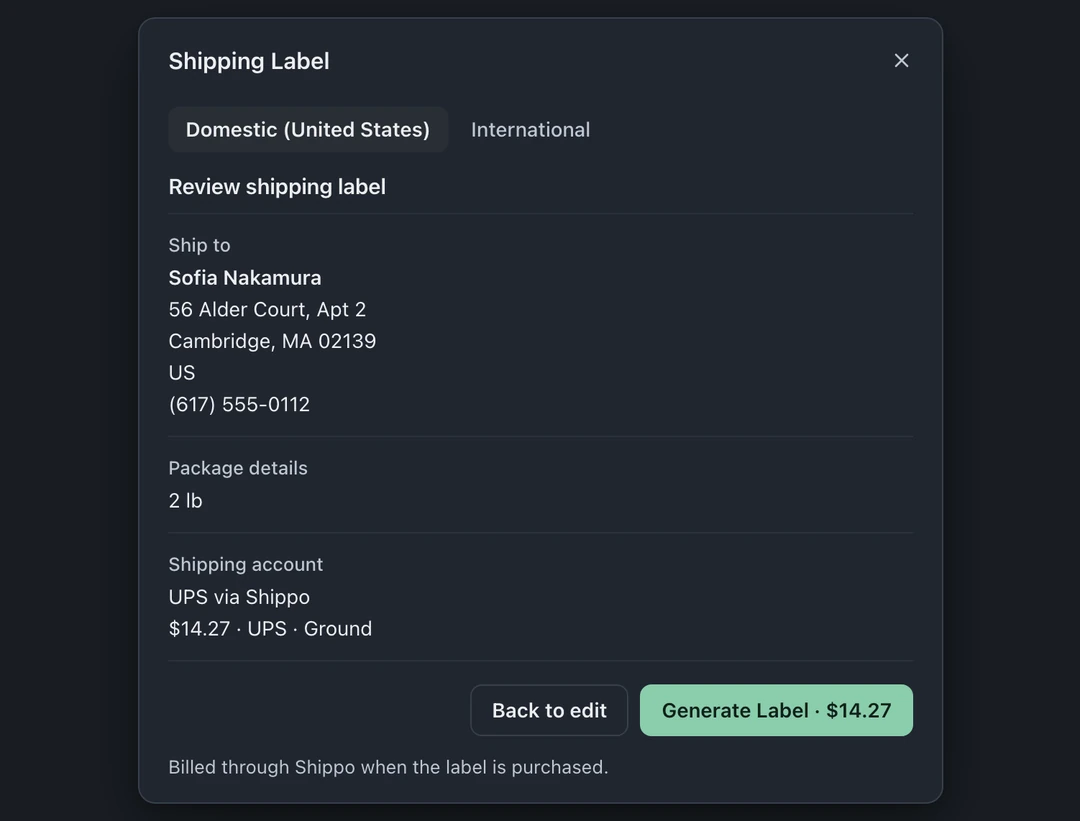
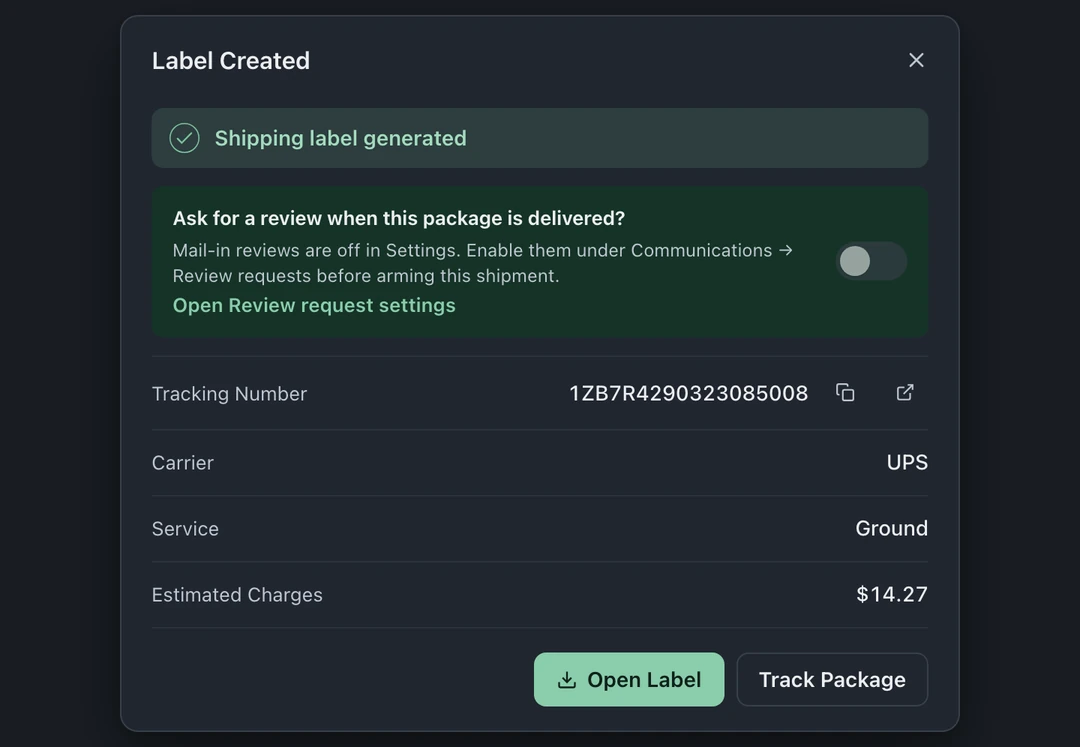
The available carrier path depends on what the shop connected. BenchKey supports its Shippo and direct UPS account flows.
Work the Shipping board
Section titled “Work the Shipping board”Open Shipping in the left icon rail. The stage buttons show counts for:
- All shipments
- Labels created
- In transit
- Delivered
- Void requested
- Void failed
- Voided
Each shipment row shows Tracking, Customer, Ticket, Device, Date, and Status. On narrower windows, the device moves into the row details. Click the tracking number to copy it or the ticket number to open the repair. The row’s printer icon opens the label, and Track opens carrier tracking. Open the row for more details and Open label, Email when available, Copy tracking, and the carrier tracking link.
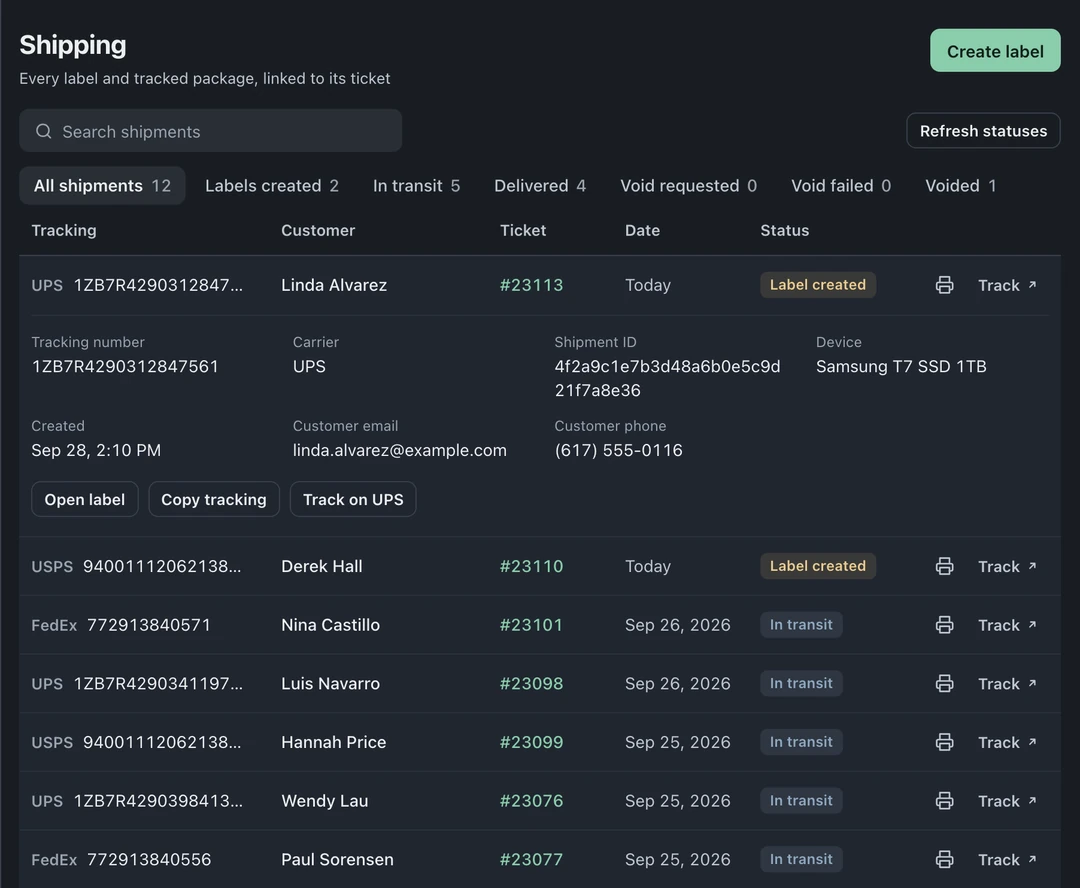
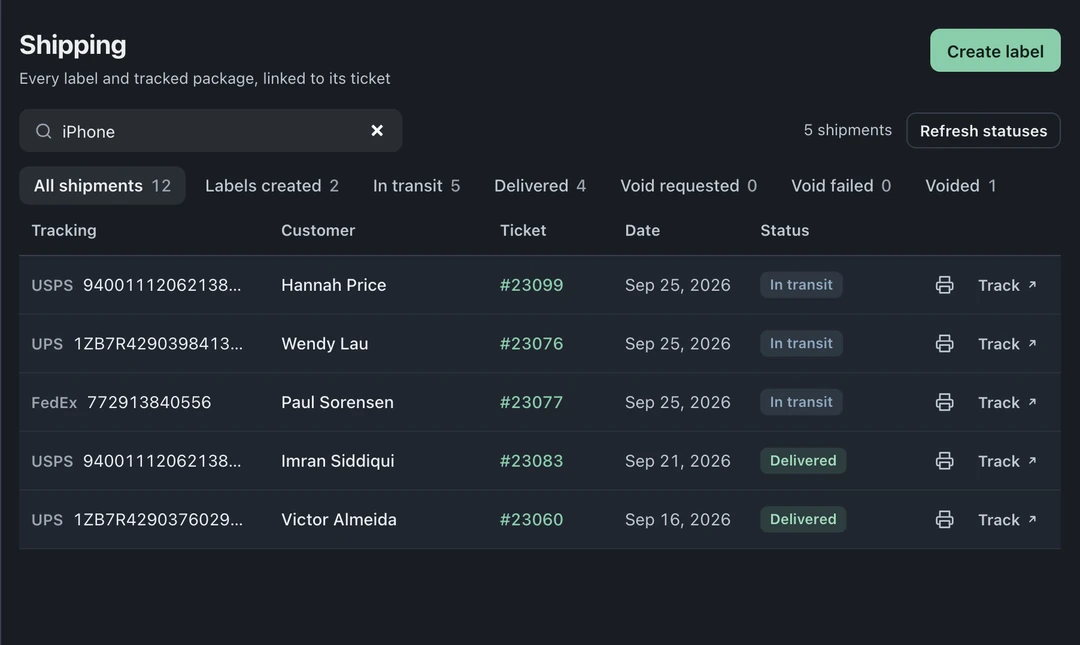
Search shipments accepts the customer, ticket number, tracking number, email, phone, or device. Select a stage button to narrow the list. Refresh statuses requests updated UPS tracking statuses.
Mail-in labels
Section titled “Mail-in labels”Labels generated through the public mail-in form land in the same shipping history as staff-created labels. The tracking record stays connected to the mail-in ticket throughout the repair and return trip.
See the complete Shipping & tracking feature page.